 Uzair
Uzair 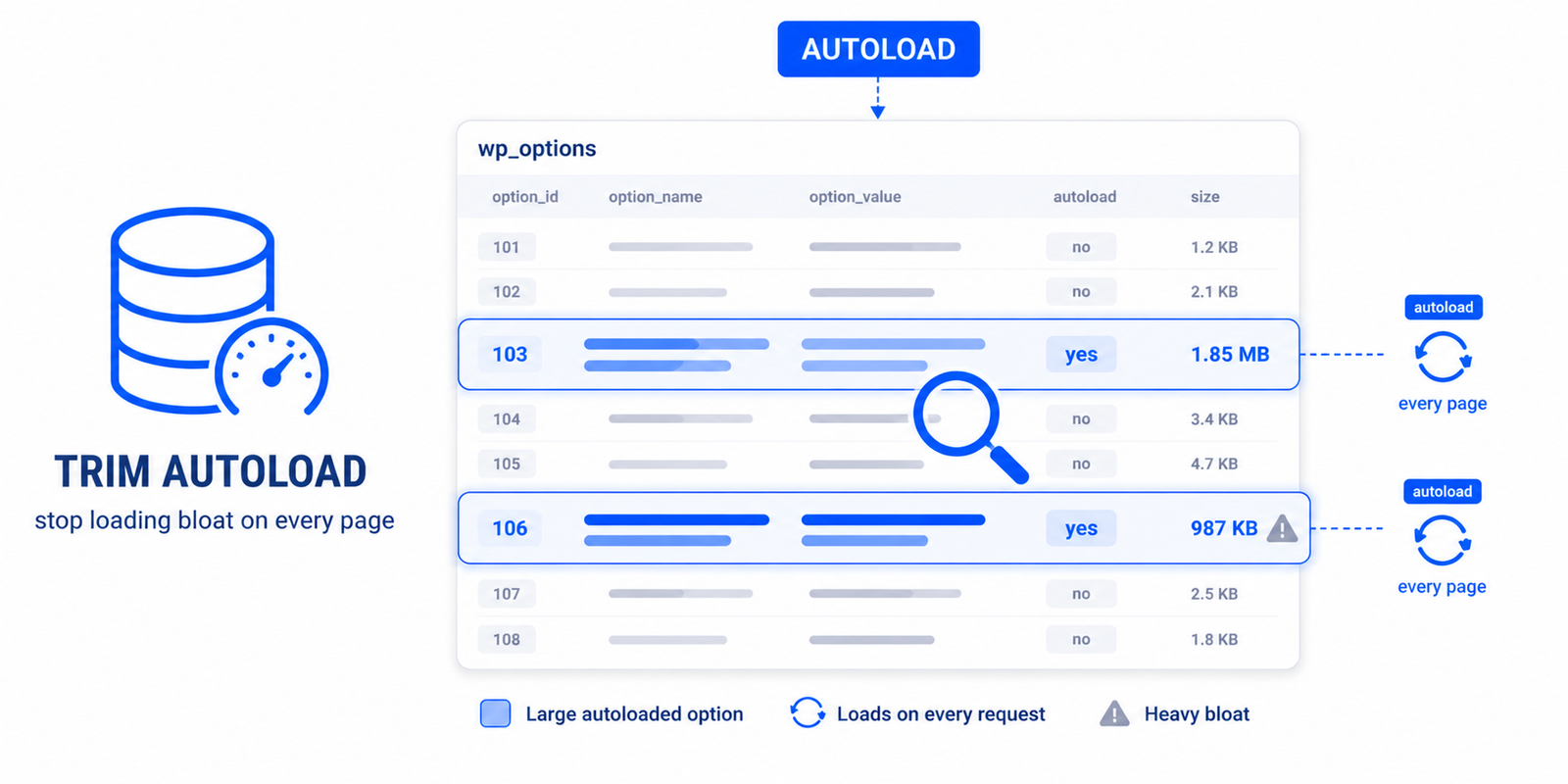
Autoloaded options are settings WordPress loads on every single page request. When too many or too large pile up — often from plugins that never clean up — they bloat memory and slow your whole site. Fix it by finding the largest autoloaded options and turning off autoload for ones not needed site-wide, or removing orphaned entries.
If WordPress Site Health shows “Autoloaded options could affect performance,” your site is loading more data than it should on every page. It is a common warning, it builds up quietly over time, and it is fixable — but it needs a careful hand, because the wrong cleanup can break things. Here is what it means and how to fix it safely.
What autoloaded options are
WordPress stores settings in a database table called wp_options. Each option has an autoload flag. When it is set to “yes,” that option is loaded into memory on every single request to your site — before the page even begins to build — so the data is instantly available. That is efficient for small settings used everywhere, like your site title.
The problem starts when autoloaded data grows large. Because it loads on every request, a bloated autoload set adds memory overhead and database work to each page load, slowing the whole site. Site Health flags this when the total autoloaded data passes a threshold (commonly around 800KB to 1MB).
Why it builds up
Autoload bloat is almost always accumulated cruft:
- Plugins that store large data autoloaded — caches, logs, or settings that did not need to load everywhere.
- Orphaned options left behind by plugins you deleted, which never cleaned up after themselves.
- Transients and temporary data stored with autoload enabled.
- Years of accumulated settings on an older site.
How to fix it — the careful way
The fix is not “disable autoload on everything.” Two operations are involved, and each carries risk if done blindly:
- Find the biggest autoloaded options. You need to see which entries are actually large, not guess. The total is made up of a few heavy items plus many tiny ones — target the heavy ones.
- For large options not needed site-wide, set autoload to “no.” This does not delete the option; it just stops it loading on every page, so it is fetched only when actually needed. This is the safest lever.
- For clearly orphaned options from plugins you have removed, deleting them is appropriate — but only once you are confident they belong to nothing still installed.
Two cautions. First, do not disable autoload on an option your site genuinely needs on every page — you will just move the database query elsewhere, sometimes making things worse. Second, always back up your database before deleting options; removing something still in use can break a plugin or your site.
Doing it safely in WordPress
Editing wp_options by hand in the database is risky and fiddly. Easy Optimizer includes an Autoload Health Auditor that surfaces your largest autoloaded options, shows how much each contributes, and helps you identify orphaned entries — so you can make informed decisions instead of guessing. Combined with a database backup, that lets you trim the bloat safely: review the largest items, disable autoload on those not needed everywhere, and remove genuine orphans, then re-check Site Health.
Part of a healthy backend
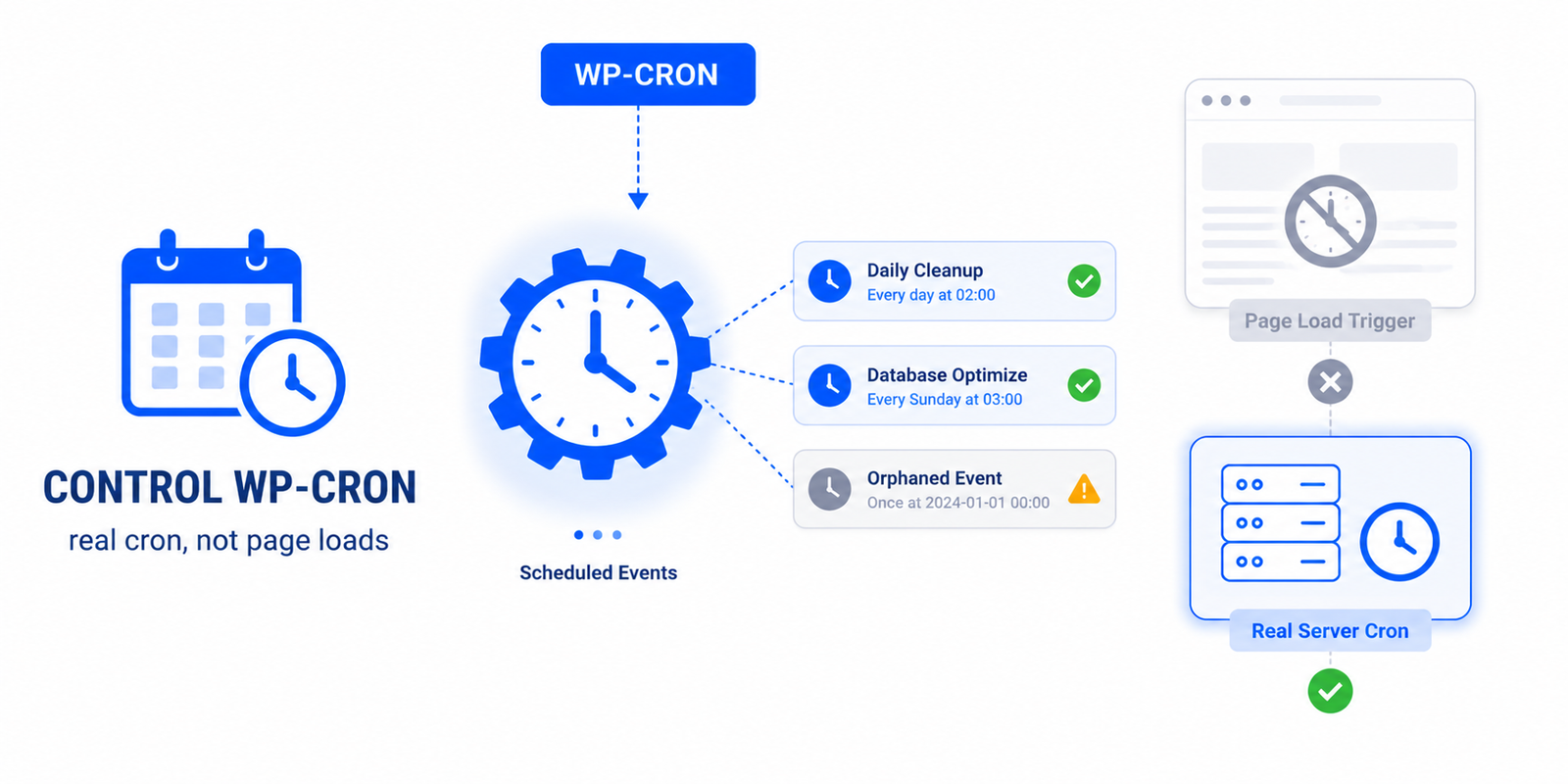
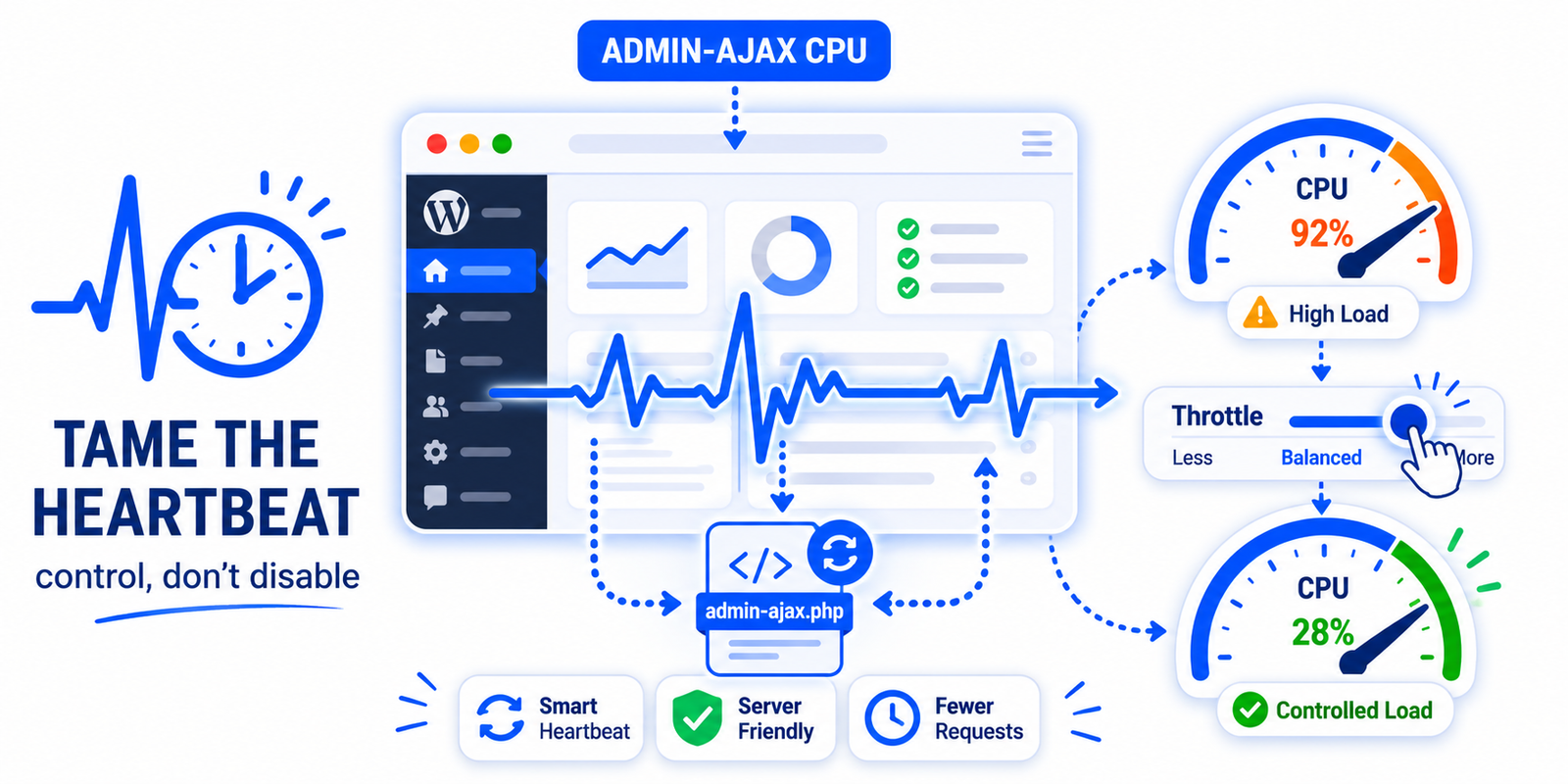
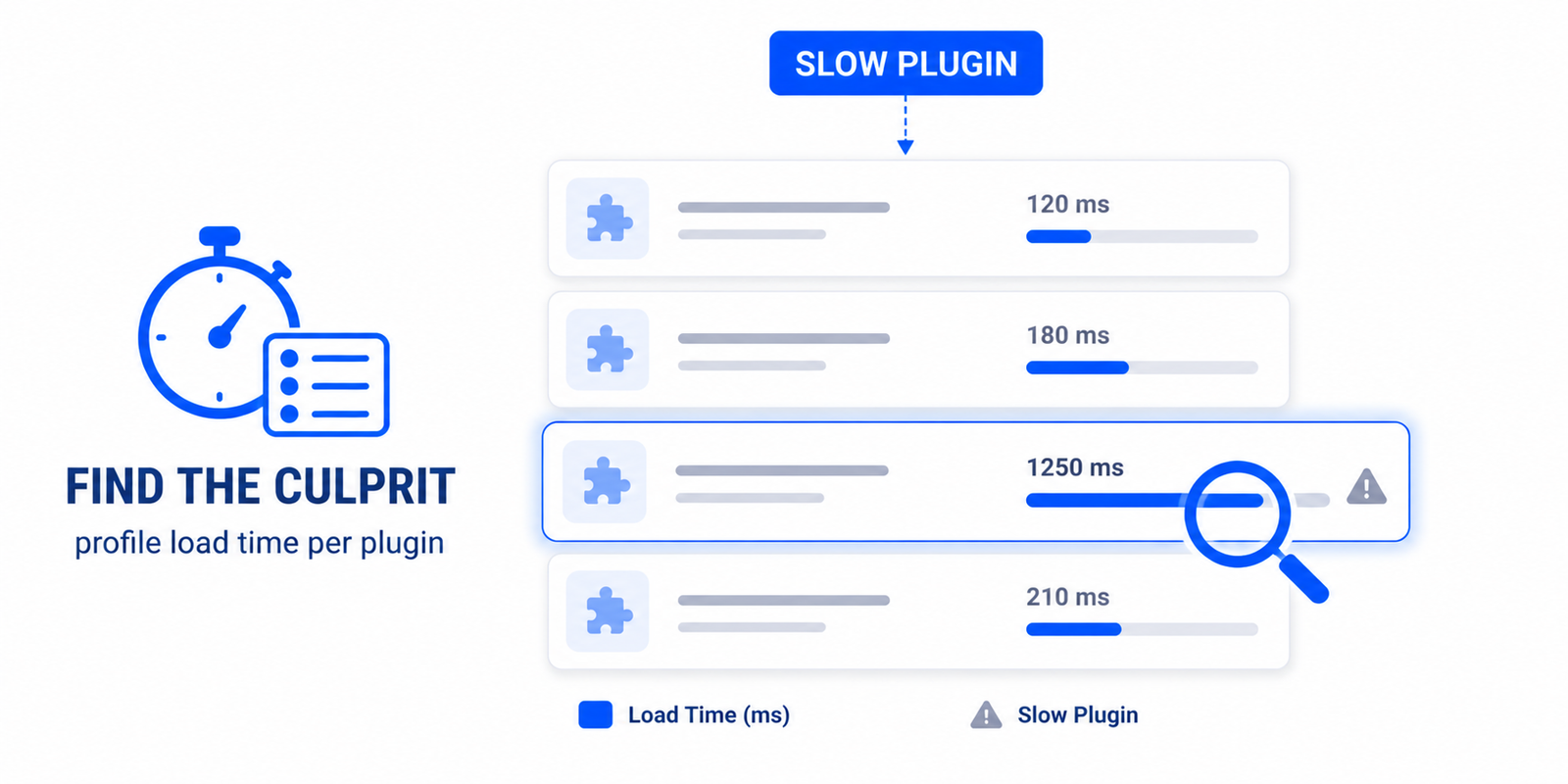
Autoload bloat is one of several backend issues that quietly tax every page. It pairs naturally with finding slow plugins and themes and controlling background tasks like the Heartbeat API and WP-Cron. Together these reduce the invisible overhead that caching alone cannot fix.
What does “autoloaded options could affect performance” mean?
It means the data WordPress loads on every page request — autoloaded options in the wp_options table — has grown large enough to slow your site. Site Health flags it when the total passes a threshold, typically around 800KB to 1MB.
What is autoload in WordPress?
Autoload is a flag on each option in the database. When set to “yes”, that option loads into memory on every request, before the page builds. It’s efficient for small site-wide settings but costly when large data is autoloaded unnecessarily.
Is it safe to disable autoload on options?
For large options not needed on every page, yes — turning autoload off just delays loading them until needed, without deleting anything. But don’t disable autoload on options your site needs everywhere, and back up before changing or deleting anything.
What causes autoload bloat?
Usually plugins that store large data autoloaded, orphaned options left by deleted plugins, transients saved with autoload on, and years of accumulated settings. The heavy items are what matter; many tiny options together are usually fine.
How do I find large autoloaded options?
You need a tool that lists options by size, since the total is a few heavy items plus many small ones. Easy Optimizer’s Autoload Health Auditor surfaces the largest entries and flags orphans, so you can act on the right ones instead of guessing.
Will fixing autoload speed up my site?
It reduces the data loaded on every request, lowering memory use and database work per page. The effect is most noticeable when autoload was badly bloated; on a lean site the gain is smaller but it removes invisible overhead caching can’t address.