 Uzair
Uzair 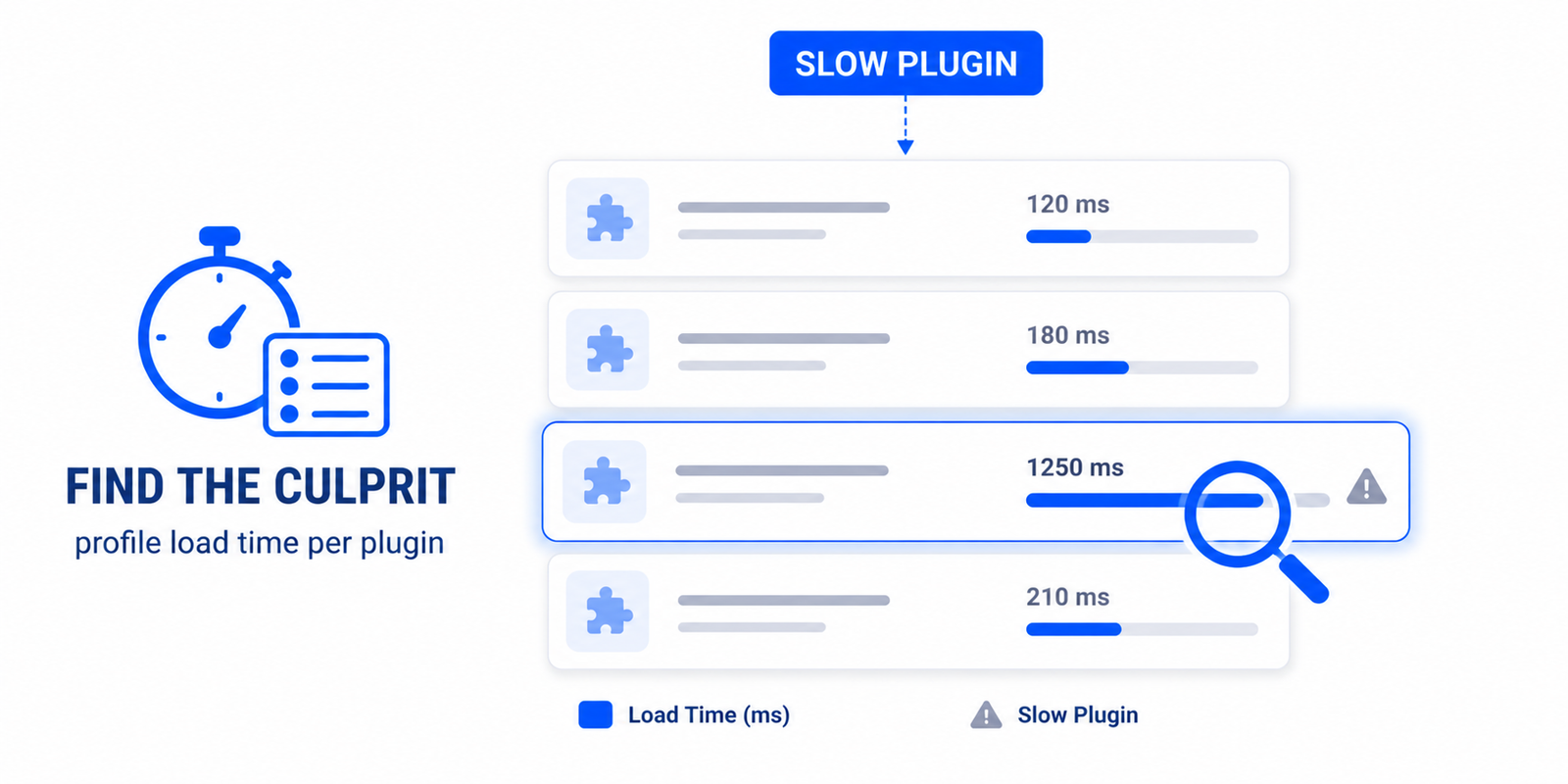
Slow WordPress sites are usually caused by a few heavy plugins or a bloated theme adding excess queries, scripts and load time. Find the culprits by profiling load time and database queries per plugin, or by deactivating plugins one at a time and measuring. Then replace, remove, or limit where the worst offenders load.
When a WordPress site feels slow — pages crawl, the admin lags, your host warns about CPU — the cause is usually not WordPress itself. It is one or two heavy plugins, or a bloated theme, doing far more work than they should. The skill is finding which ones. This guide shows you how to identify the slow plugins and themes, and what to do once you have.
How a plugin slows your site
A plugin can drag performance in several ways, often at once:
- Excess database queries on every page load.
- Heavy JavaScript and CSS loaded site-wide, even on pages that do not use the plugin — which also hurts INP.
- Slow or unoptimised code that takes too long to run.
- Frequent background requests that tax the server.
A theme can do the same, loading large stylesheets and scripts or making heavy queries to render each page.
Signs you have a slow plugin or theme
- The admin dashboard is sluggish, especially specific screens.
- Time to first byte (TTFB) is high even with caching.
- Your host reports high CPU or resource usage.
- Performance got worse right after installing or updating a particular plugin.
How to find the culprit
There are three reliable methods, from easiest to most thorough:
- Profile load time and queries per plugin. The best approach is a tool that measures how much time and how many database queries each plugin adds to a page load. This points straight at the offender without trial and error. Free tools like Query Monitor can show queries by source, and a built-in analyzer can attribute load directly to plugins.
- Deactivate and measure. The classic method: measure your load time, then deactivate plugins one at a time (ideally on a staging site), re-measuring after each. A big drop when one plugin is off identifies it. Tedious but conclusive.
- Check your host’s metrics. Slow-query logs and resource graphs in your hosting dashboard can reveal which processes or queries are heaviest.
Doing it without trial and error
Easy Optimizer includes a Backend Analyzer and Query Profiler that profile which plugins add the most load and surface slow database queries — so instead of deactivating plugins one by one, you can see at a glance which ones are heaviest and which queries are slowest. That turns a tedious elimination process into a quick diagnosis, and it works on the live backend rather than only in a test.
What to do once you’ve found it
Identifying the plugin is half the job; here is the other half:
- Replace it with a lighter alternative that does the same job.
- Remove it if the feature is not essential.
- Limit where it loads. If a plugin is only needed on one page (a contact form, say), prevent its scripts and styles from loading everywhere else.
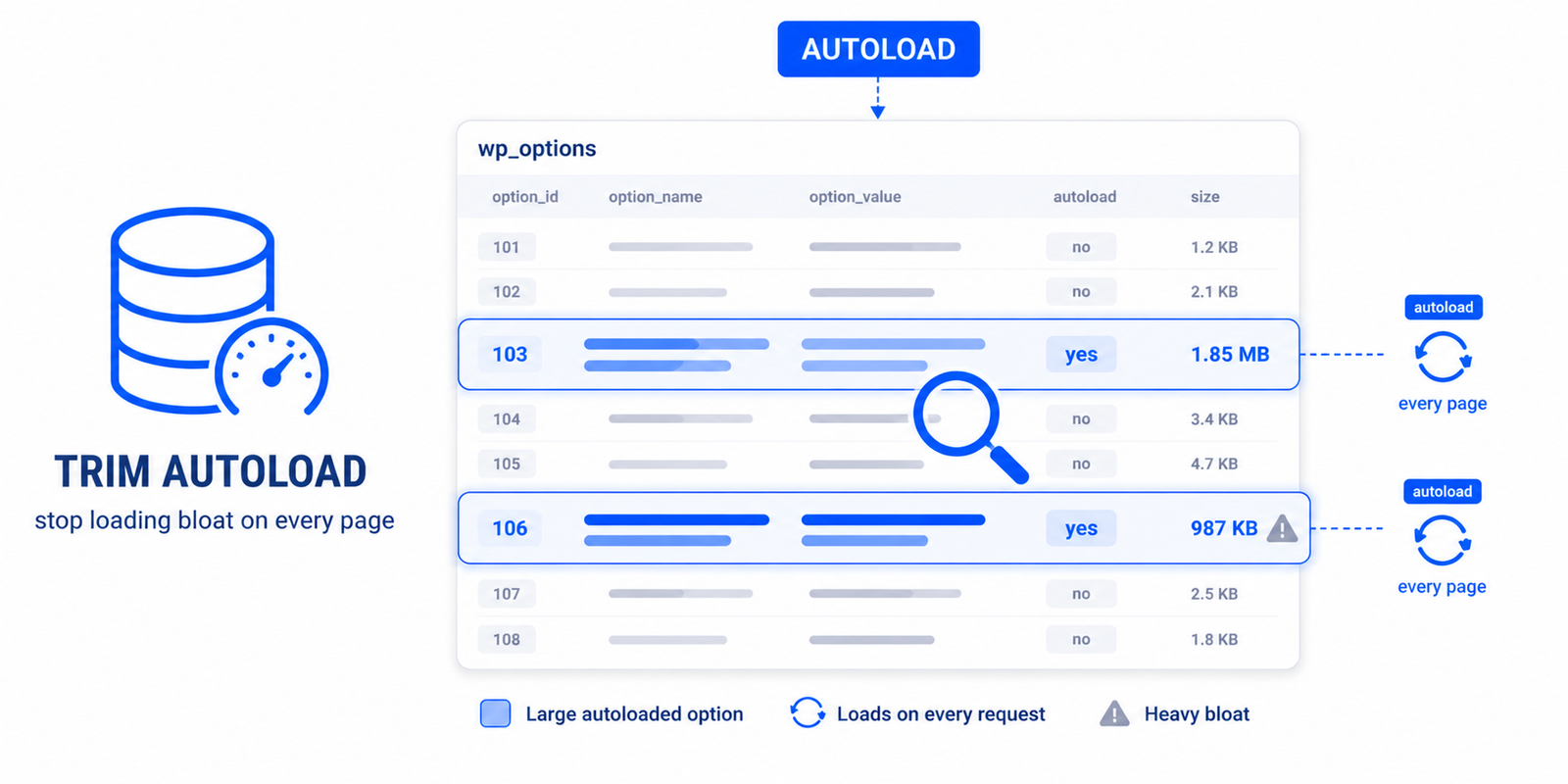
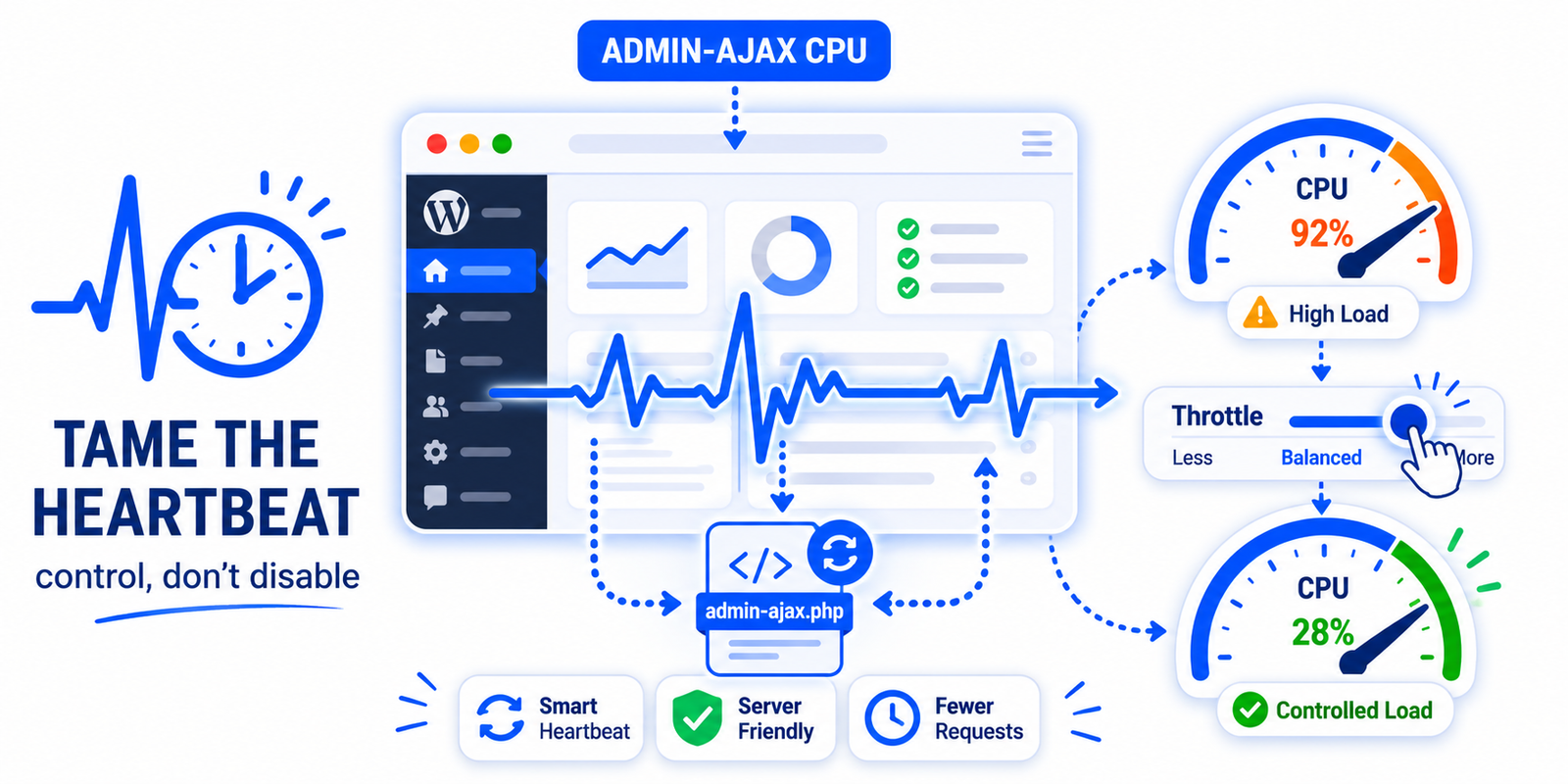
- Optimise around it — delay its JavaScript, and address related backend overhead like autoloaded options and admin-ajax activity.
Removing or taming a single heavy plugin is often the largest single speed improvement you can make — bigger than any caching tweak — because it eliminates work rather than just caching the result of it.
How do I know which plugin is slowing my WordPress site?
Profile load time and database queries per plugin, or deactivate plugins one at a time on staging and measure the difference. A tool that attributes load directly to each plugin, like Easy Optimizer’s Backend Analyzer, identifies the culprit fastest.
Can a plugin slow down the admin dashboard?
Yes. Heavy plugins add queries and scripts to admin screens and can make frequent background requests, which slows wp-admin. A sluggish dashboard, especially on specific screens, often points to one heavy plugin.
Should I deactivate plugins to test speed?
It’s a reliable method: measure load time, deactivate one plugin, re-measure, and repeat — ideally on a staging site. A large improvement when one is off identifies it. Profiling tools reach the same answer faster without disabling anything.
What do I do after finding a slow plugin?
Replace it with a lighter alternative, remove it if non-essential, or limit it to load only where needed. You can also delay its JavaScript and clean up related overhead. Removing a heavy plugin is often the biggest single speed gain.
Can a theme slow down WordPress too?
Yes. Bloated themes load large stylesheets and scripts and can make heavy queries per page. If deactivating plugins doesn’t fully explain the slowness, test with a default theme to see whether your theme is a contributor.
Does caching fix a slow plugin?
Only partly. Caching serves a stored copy of a page, which hides backend slowness for cached visitors, but logged-in users, the admin, and dynamic requests still run the slow code. Removing or taming the plugin fixes the cause.