 Uzair
Uzair 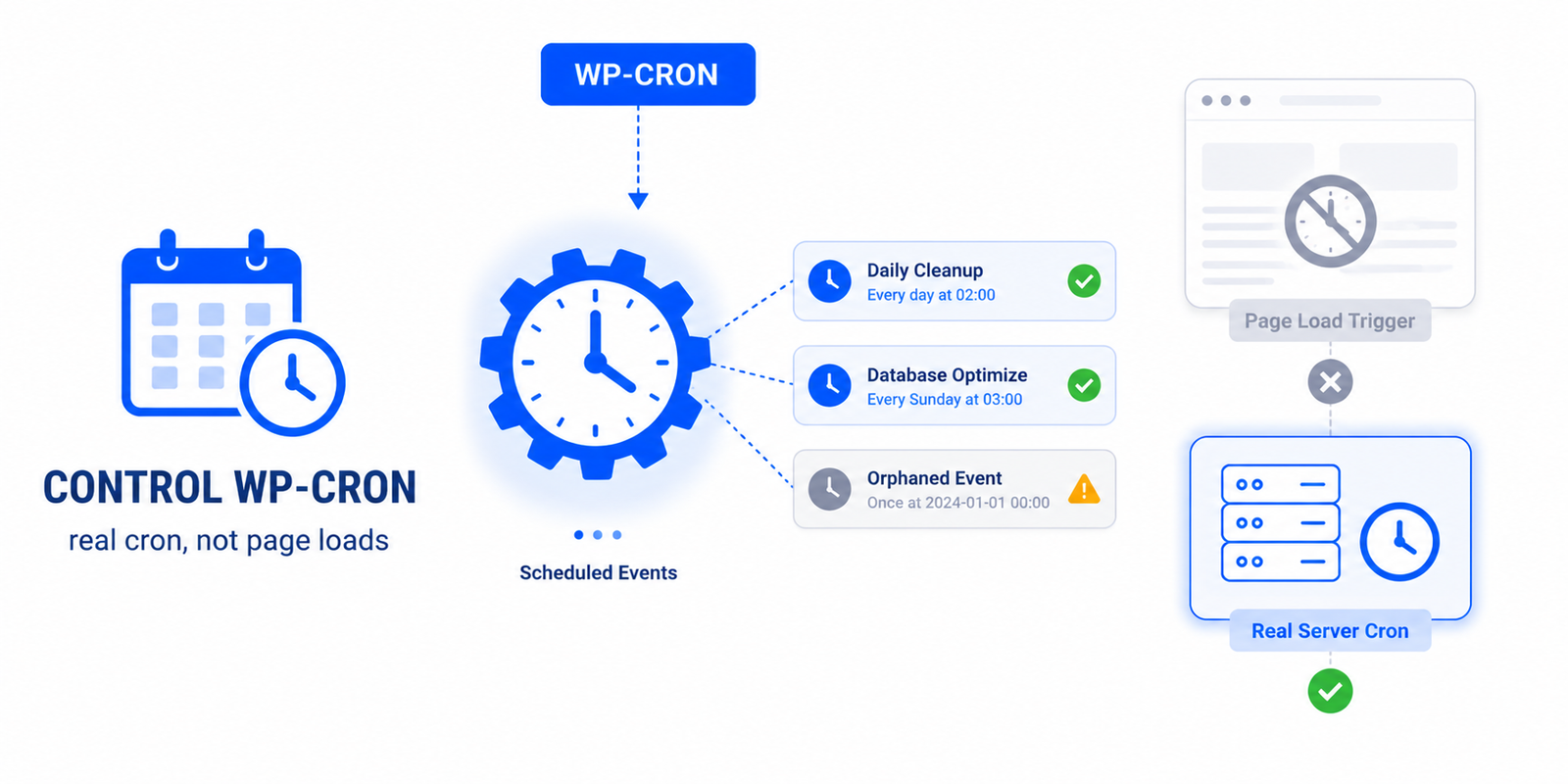
WP-Cron runs scheduled tasks but is triggered by page visits, which can add overhead on busy sites and miss schedules on quiet ones. The fix is to disable the page-load trigger in wp-config.php and set up a real server cron job to run wp-cron.php at fixed intervals — never disable it without scheduling a replacement.
WP-Cron is one of those WordPress systems that works invisibly until it causes a problem — either adding overhead on a busy site or failing to run tasks on time on a quiet one. The good news is that there is a well-established fix. This guide explains how WP-Cron really works and how to control it the right way, without breaking your scheduled tasks.
What WP-Cron is — and its catch
WP-Cron is WordPress’s scheduled-task system. It runs jobs like publishing scheduled posts, checking for updates, clearing expired data, and the background tasks many plugins rely on. But unlike a true system cron, WP-Cron is not time-based — it is triggered by page visits. On every page load, WordPress checks whether a scheduled task is due and, if so, runs it.
That design has two failure modes pulling in opposite directions:
- On low-traffic sites, if nobody visits, the check never fires — so scheduled posts publish late and tasks back up.
- On high-traffic sites, the check runs constantly, and a slow scheduled task can even hold up a visitor’s page load, adding overhead and CPU.
The right fix: disable the trigger, add a real cron
The standard solution is to stop WP-Cron running on page loads and instead run it on a reliable schedule from your server. It is two steps, and both are required:
Step 1 — Disable the page-load trigger. Add this line to your wp-config.php, above the “stop editing” comment:
define('DISABLE_WP_CRON', true);Step 2 — Schedule a real cron job to hit wp-cron.php at a fixed interval (say every 5 to 15 minutes). You set this up in your hosting control panel (cPanel, Cloudways, and most managed hosts offer a cron scheduler), pointing it at your site’s wp-cron.php. This decouples scheduled tasks from visitor traffic, so they run on time and stop adding overhead to page loads.
The critical warning
Do not complete Step 1 without Step 2. If you disable WP-Cron’s trigger and do not set up a real cron job, your scheduled tasks simply stop — scheduled posts will not publish, plugin maintenance will not run, and updates will not be checked. Disabling the trigger is only safe when a replacement schedule is in place.
The other half: clean up your cron events
Switching how cron runs does not help if your cron queue is itself a mess. Over time, sites accumulate:
- Orphaned events from plugins you have removed, still scheduled with nothing to run them.
- Duplicate events scheduling the same task repeatedly.
- Runaway tasks set to run far too often.
Reviewing your scheduled events and clearing these reduces the work cron does each time it runs.
Doing it in WordPress
Editing wp-config.php and wiring up a server cron job is straightforward but easy to get half-done — and that is exactly the dangerous state. Easy Optimizer includes a Cron Manager that lets you see all your scheduled events, identify orphaned or duplicate ones, and manage how WP-Cron runs from the admin — so you can clean up the queue and control cron behaviour without leaving tasks stranded. Pair that with a real server cron job for the most reliable setup.
Related backend overhead
WP-Cron overhead often appears alongside other backend strain. If you are chasing high server load, also look at admin-ajax.php and the Heartbeat API, autoloaded options, and any slow plugins. Together these are the usual sources of the invisible work that caching cannot fix.
What is WP-Cron and why can it cause problems?
WP-Cron runs WordPress’s scheduled tasks, but it’s triggered by page visits rather than a clock. On busy sites it runs constantly and adds overhead; on quiet sites tasks can run late because no visit triggers them.
How do I disable WP-Cron?
Add define(‘DISABLE_WP_CRON’, true); to wp-config.php to stop it running on page loads. Crucially, you must then set up a real server cron job to run wp-cron.php on a schedule, or your scheduled tasks will stop entirely.
Is it safe to disable WP-Cron?
Only if you replace it with a real cron job. Disabling the trigger alone stops scheduled posts publishing and plugin tasks running. With a server cron job hitting wp-cron.php at fixed intervals, it’s safe and usually better.
How often should the real cron job run?
Every 5 to 15 minutes suits most sites — frequent enough that scheduled posts and tasks run close to on time, without the constant overhead of firing on every page load. Time-sensitive sites can run it more often.
Why are old plugins still leaving cron events?
Some plugins don’t clean up their scheduled events when removed, leaving orphaned tasks in the queue. Duplicate and overly frequent events also accumulate. Reviewing and clearing them reduces the work cron does each run.
How do I see my scheduled cron events?
You need a tool that lists WordPress’s scheduled events, since they’re not visible in the standard admin. Easy Optimizer’s Cron Manager shows your events, flags orphaned or duplicate ones, and lets you manage how WP-Cron runs.