 Uzair
Uzair 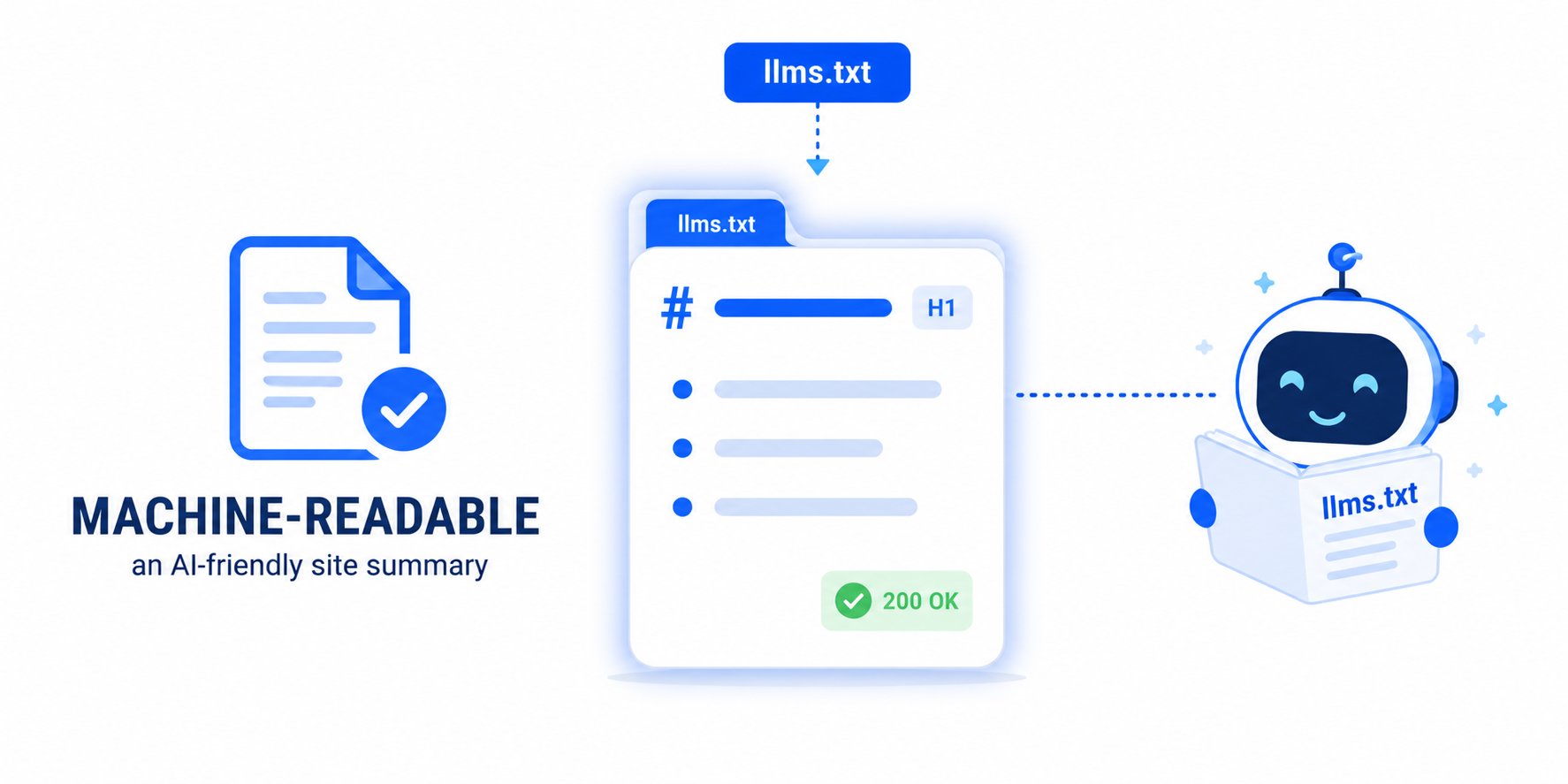
This warning means PageSpeed Insights either couldn't fetch your llms.txt file or found one that isn't valid. Fix it by placing a correctly formatted llms.txt — plain Markdown with at least one H1 heading — at your domain root, served as plain text with a clean HTTP 200 response.
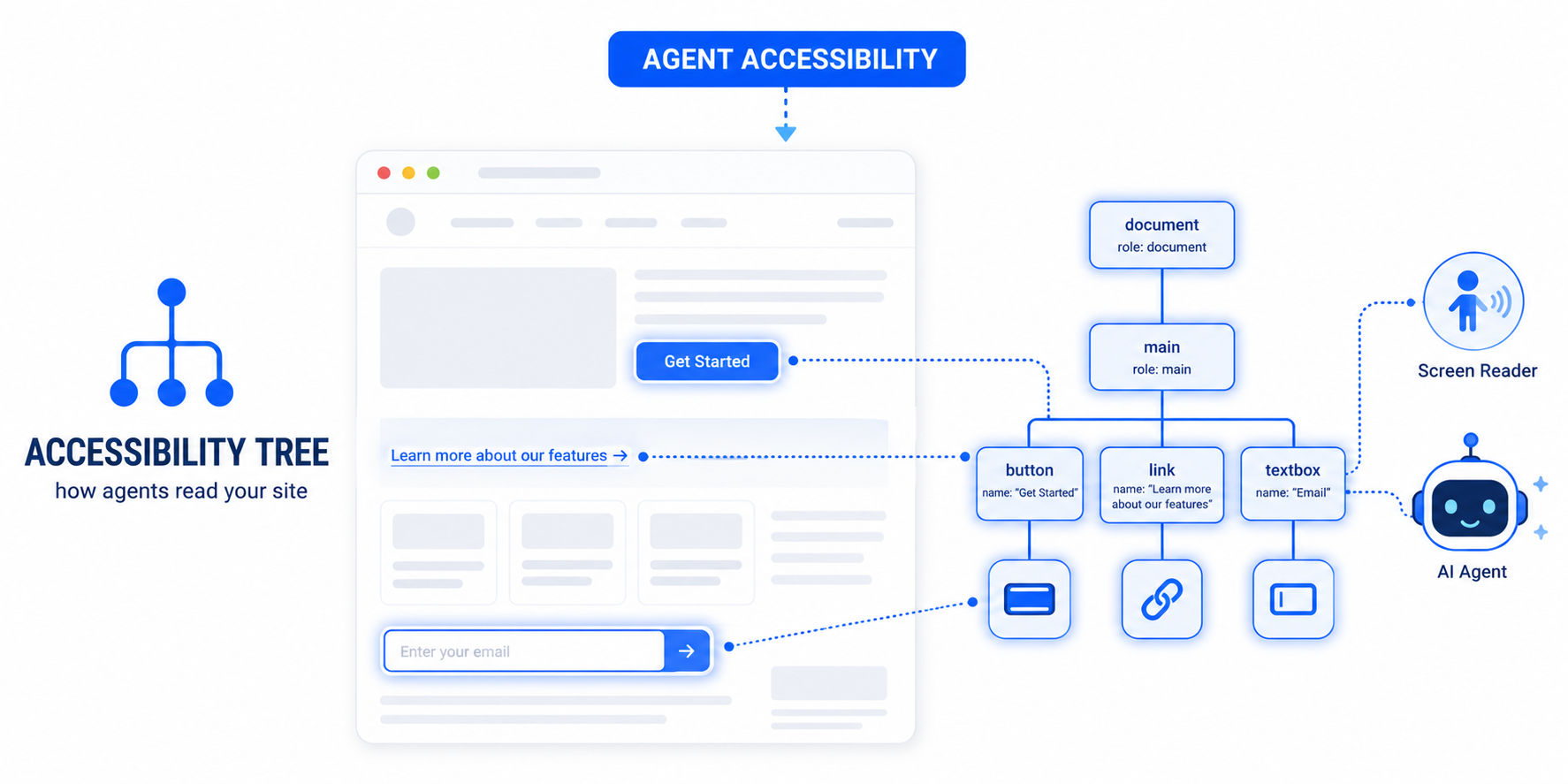
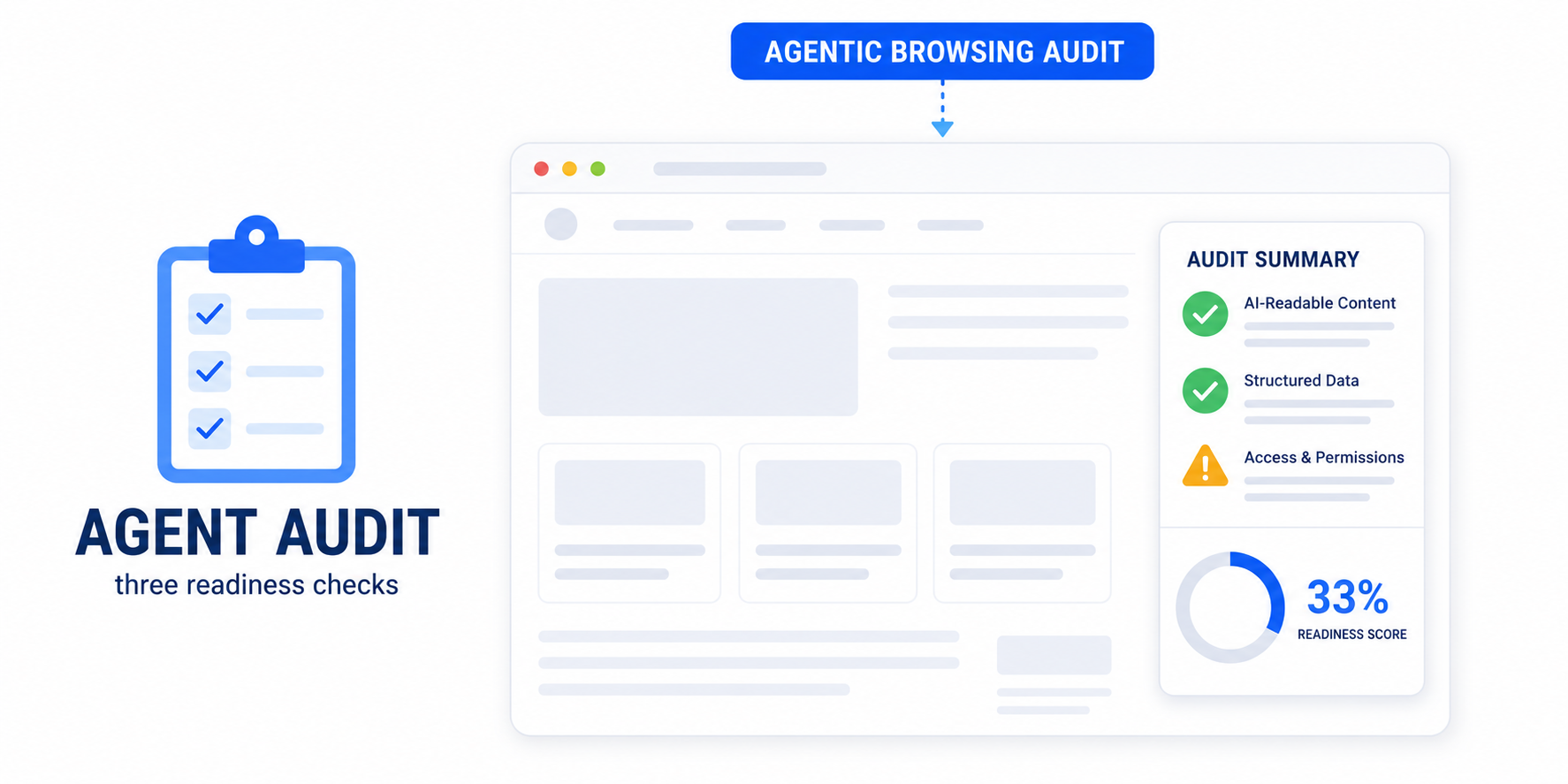
You ran PageSpeed Insights, scrolled to the new Agentic Browsing section, and found a red flag under Agent Accessibility: “llms.txt does not follow recommendations”, sometimes with the detail “Fetch of llms.txt failed”. This guide explains exactly what that means and walks you through fixing it on WordPress.
What “llms.txt does not follow recommendations” actually means
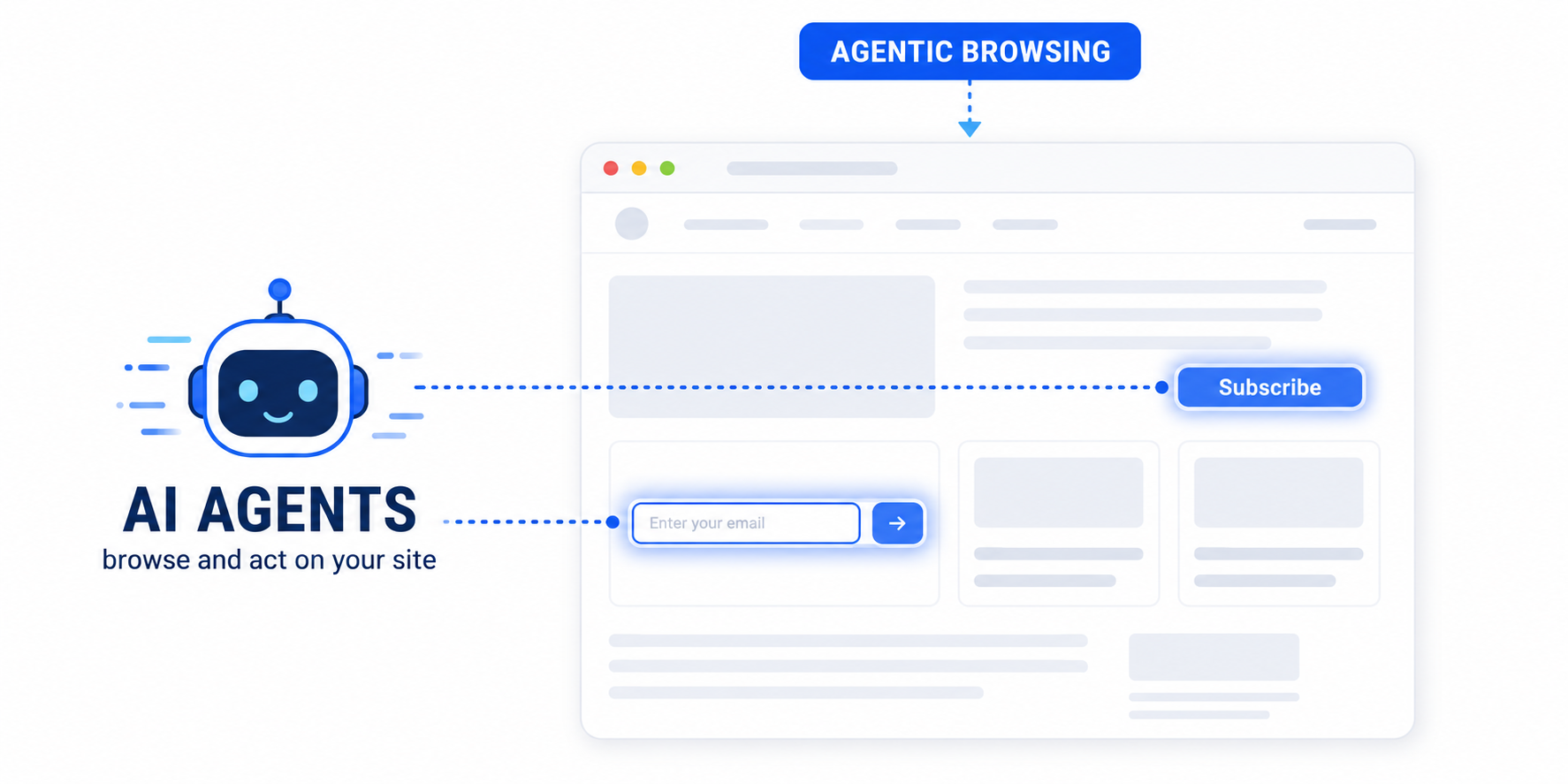
The llms.txt file is an emerging convention for giving large language models a clean, machine-readable summary of your site — what it is about and which pages matter — so agents do not have to crawl everything to understand you. PageSpeed Insights checks for it as part of the Agentic Browsing audit.
There is an important nuance in how the check behaves:
- If the file is simply missing — a clean 404 — the audit is marked Not Applicable. Providing the file is optional at the moment.
- If the server errors while fetching it (“Fetch of llms.txt failed”), or the file exists but is malformed, the audit flags a problem.
So this warning means more than “you don’t have one.” It means the request for your llms.txt broke, or the file that responded is not valid. The fix is to serve a correctly formatted file that returns cleanly.
What a valid llms.txt looks like
Per the specification, llms.txt must be a Markdown file containing at least one H1 heading, placed at your domain root (for example https://yoursite.com/llms.txt). A solid structure is an H1 title, a one-line summary, then sections of key links. Here is a working template you can adapt:
[ ADD A “CODE” BLOCK HERE AND PASTE CODE SAMPLE A — the llms.txt template ]
Keep it concise — a map of your most important pages, not a copy of your whole site.
How to fix it on WordPress, step by step
- Create the file. In a plain-text editor, build your
llms.txtusing the template above. Make sure the very first line is an H1 — a single#followed by your site name. - Put it at your domain root. Upload
llms.txtto the same folder as yourrobots.txtandwp-config.php— the web root — using your host’s File Manager or an FTP client. It must live at/llms.txt, not inside a subfolder. - Confirm it loads cleanly. Visit
https://yoursite.com/llms.txtin a browser. It should return the file directly with an HTTP 200 status — not redirect, and not show your themed 404 page. - Check it is served as text. The content should appear as plain Markdown, not wrapped in your theme’s HTML. A physical file in the web root handles this automatically.
- Clear caches and re-test. Purge your page cache and your CDN (for example Cloudflare), then re-run PageSpeed Insights and confirm the warning is gone.
Can’t upload to the root? Serve it with a snippet
If your host does not let you write to the web root, add the following as a small must-use plugin (drop it in wp-content/mu-plugins/). A must-use plugin is better than editing functions.php because it survives theme changes:
[ ADD A “CODE” BLOCK HERE AND PASTE CODE SAMPLE B — the PHP snippet ]
Edit the echoed lines to match your site, then visit /llms.txt to confirm it serves correctly.
Why the fetch fails — common causes
- A redirect. If
/llms.txtredirects (http to https, or non-www to www), the fetch can fail. Serve it on your canonical host with a direct 200. - A soft 404. Some setups answer a missing file with your themed 404 page but a 200 status — that returns HTML, not Markdown, and fails validation.
- Wrong location. The file must be at the root (
/llms.txt), not in/wp-content/,/blog/, or any subfolder. - Blocked by a firewall or CDN. Cloudflare bot management or a security plugin can block the automated request. Allow
/llms.txtexplicitly. - Wrong content type. Serve UTF-8 text; avoid forcing a download type like
application/octet-stream. - Multisite root confusion. On subdirectory multisite, make sure each site’s root resolves to its own file.
Do you actually need llms.txt?
Honestly, not urgently. The audit treats a missing file as optional, and the standard is young. But adding one is low-effort and forward-looking: it helps AI assistants summarise and cite your site accurately, and it clears the warning. If you publish content you want models to understand and recommend, it is worth the ten minutes.
# Your Site Name

> A one-sentence description of what your site does and who it is for.

## Key pages
- [Homepage](https://yoursite.com/): What visitors find here.
- [Products or Services](https://yoursite.com/services/): What you offer.
- [Blog](https://yoursite.com/blog/): Guides and articles.

## Guides
- [A flagship guide](https://yoursite.com/guide/): Short description.
- [Another guide](https://yoursite.com/guide-two/): Short description.

## Contact
- [Contact us](https://yoursite.com/contact/): How to reach you.
<?php
/**
* Plugin Name: Virtual llms.txt
* Description: Serves /llms.txt for AI agents and the PageSpeed Agentic Browsing audit.
*/
add_action( 'template_redirect', function () {
$path = trim( parse_url( $_SERVER['REQUEST_URI'] ?? '', PHP_URL_PATH ), '/' );
if ( 'llms.txt' !== $path ) {
return;
}
nocache_headers();
header( 'Content-Type: text/plain; charset=utf-8' );
status_header( 200 );
echo "# Your Site Name\n\n";
echo "> A one-sentence description of your site.\n\n";
echo "## Key pages\n";
echo "- [Homepage](https://yoursite.com/): What visitors find here.\n";
echo "- [Blog](https://yoursite.com/blog/): Guides and articles.\n";
exit;
} );Where do I put the llms.txt file in WordPress?
At your site’s root, in the same folder as robots.txt and wp-config.php, so it loads at https://yoursite.com/llms.txt. Upload it with your host’s File Manager or FTP. If you can’t write to the root, serve it virtually with a small must-use plugin.
Is llms.txt required for WordPress?
No. PageSpeed Insights treats a missing llms.txt as optional and marks it Not Applicable. The warning appears only when the file fails to fetch or is malformed. Adding a valid one is recommended but not mandatory.
What’s the difference between llms.txt and robots.txt?
robots.txt tells crawlers which URLs they may access. llms.txt gives AI models a concise, Markdown summary of your most important content so they can understand your site without crawling every page. They serve different purposes and can coexist.
Why does “fetch of llms.txt failed” appear if I already have the file?
Usually because of a redirect, a soft 404 (HTML returned with a 200 status), the file sitting in a subfolder instead of the root, or a CDN or firewall blocking the request. Visit the URL directly and confirm it returns plain Markdown with a clean 200.
Does llms.txt help with AI search and ChatGPT?
It can. A clear llms.txt makes it easier for AI assistants to understand what your site offers and which pages to reference, which supports accurate summaries and citations. It is one small part of making your site machine-readable.
Can a plugin generate llms.txt automatically?
Some SEO and performance plugins are beginning to add llms.txt generation. Until that is standard, the manual file or the must-use-plugin snippet above is the most reliable method and gives you full control over what the file contains.