 Uzair
Uzair 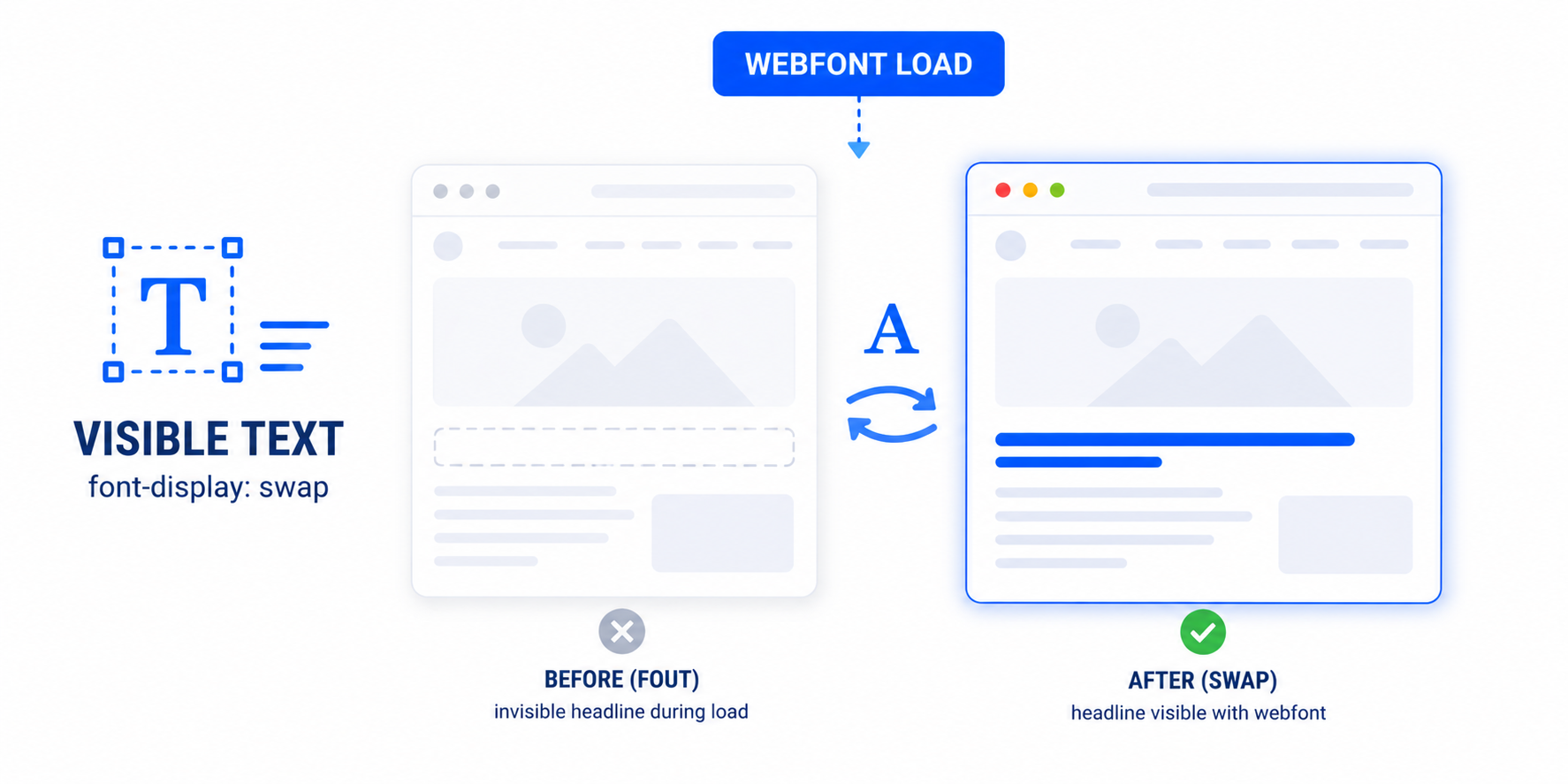
This warning means your text is invisible while a custom font loads, because the browser hides it instead of showing a fallback. Fix it by adding font-display: swap to your @font-face rules so the browser shows fallback text immediately, then swaps in the web font once it arrives.
The PageSpeed Insights warning “Ensure text remains visible during webfont load” sounds technical, but the underlying problem is simple and visible: for a moment while your page loads, your text disappears. This guide explains why that happens and how to fix it in WordPress — usually with a single CSS property.
What the warning means
When a page uses a custom web font, the browser has to download the font file before it can show text in that font. The question is what to display during that download. By default, many browsers choose to hide the text entirely until the font arrives — a behaviour known as the “flash of invisible text,” or FOIT. Your visitor stares at a blank space where your headline should be. PageSpeed flags this because invisible text is bad for both user experience and perceived speed.
The fix: font-display: swap
The solution is a CSS descriptor called font-display, added to your font’s @font-face rule. Setting it to swap tells the browser: show the text immediately in a fallback system font, then swap in the web font once it has loaded. Text is never invisible — at worst it briefly appears in a backup font. A font definition with the fix looks like this:
@font-face {
  font-family: "Your Font";
  src: url("/fonts/yourfont.woff2") format("woff2");
  font-display: swap;
}
That one line — font-display: swap; — clears the warning for most sites.
Where the problem comes from in WordPress
The fonts triggering this warning usually come from one of three places:
- Google Fonts loaded by your theme or a plugin, sometimes without
swapapplied. - Theme and page-builder fonts defined in CSS you do not directly control.
- Icon fonts (like Font Awesome) and custom uploaded fonts in your theme’s
@font-facerules.
Because these definitions live inside themes and plugins, editing them by hand means modifying files you do not own — which a plugin update will overwrite.
How to apply the fix in WordPress
You have three practical options:
- Use a font-optimisation plugin. The cleanest route. Easy Optimizer‘s font handling applies
font-display: swapacross your fonts automatically, so text stays visible without touching theme files. This also pairs well with self-hosting your fonts for privacy and speed. - Add swap to Google Fonts manually. If you control the font URL, appending
&display=swapto a Google Fonts request forces the behaviour. - Edit your own
@font-facerules. For fonts you defined yourself in a child theme, addfont-display: swap;directly to each rule.
Watch the layout-shift trade-off
There is one thing to be aware of: when the fallback font swaps to your web font, the text can change size slightly and nudge the layout — a small Cumulative Layout Shift. You can minimise this by choosing a fallback font with similar metrics, or by preloading your main web font so the swap happens early. For most sites the visible-text benefit far outweighs the tiny shift, but it is worth checking your CLS after applying swap. Both metrics are part of Core Web Vitals, so the goal is to keep text visible and stable.
What does “ensure text remains visible during webfont load” mean?
It means your text is hidden while a custom font downloads, instead of showing a fallback font. The browser’s default “flash of invisible text” leaves blank space where your words should be. PageSpeed flags it so you can keep text visible during loading.
How does font-display: swap fix it?
font-display: swap tells the browser to show text immediately in a fallback system font, then swap in your web font once it loads. Text is never invisible, which clears the warning and improves perceived speed.
Where do I add font-display: swap in WordPress?
To your @font-face rules. Since those usually live in themes and plugins you shouldn’t edit directly, a font-optimisation plugin that applies swap automatically is the safest option. For Google Fonts you control, you can append &display=swap to the request.
Does font-display: swap cause layout shift?
It can cause a small shift when the fallback font swaps to the web font and text resizes slightly. Minimise it by choosing a fallback with similar metrics or preloading the web font. The visible-text benefit usually outweighs the minor shift.
Can a plugin fix invisible text automatically?
Yes. Easy Optimizer’s font handling applies font-display: swap across your fonts without editing theme files, keeping text visible during load. It can also self-host fonts for added speed and privacy.
What’s the difference between FOIT and FOUT?
FOIT is the flash of invisible text — the browser hides text until the font loads. FOUT is the flash of unstyled text — it shows a fallback first, then swaps. font-display: swap deliberately chooses FOUT, because visible fallback text is better than no text.