 Uzair
Uzair 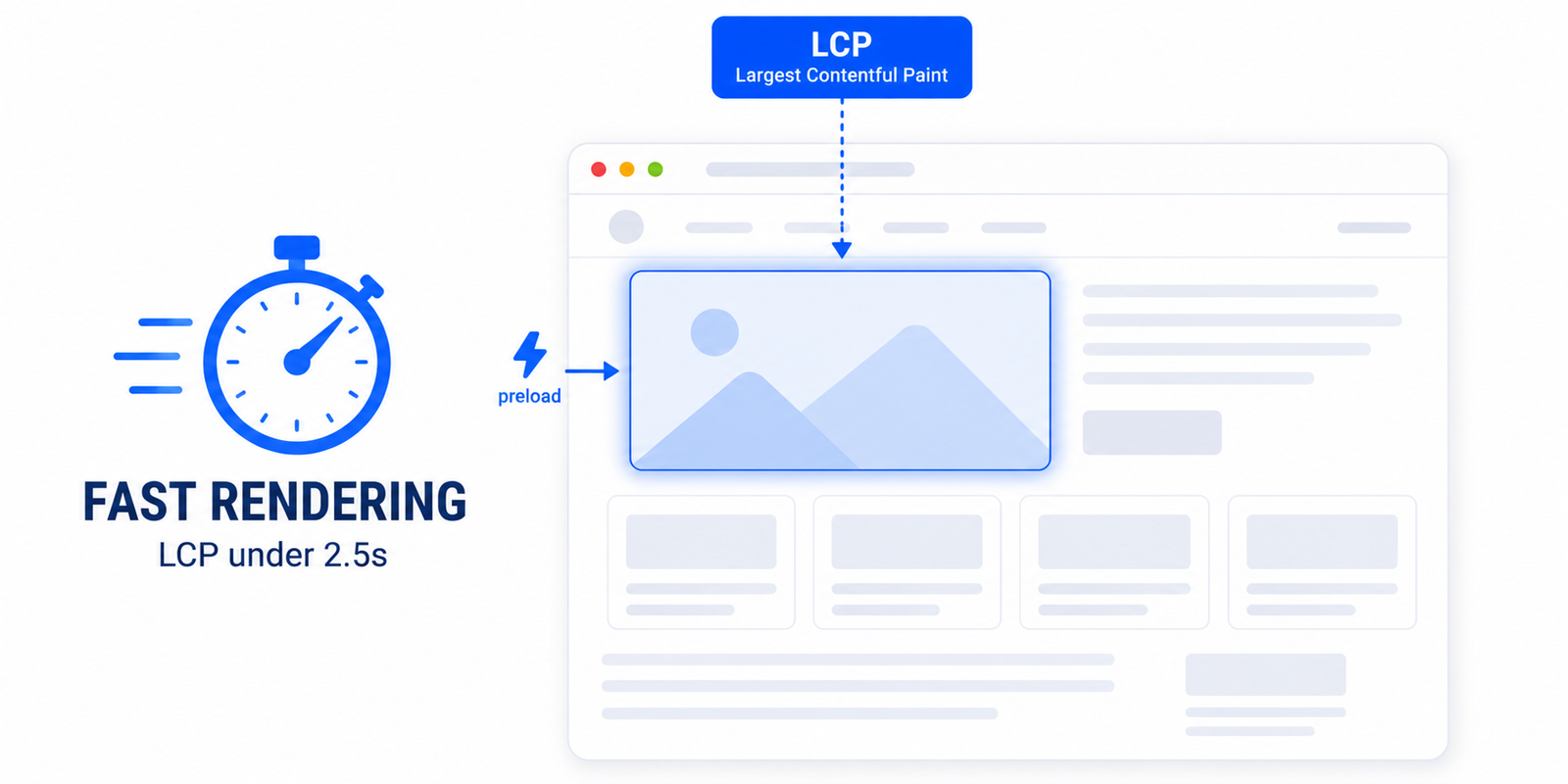
Largest Contentful Paint measures how long until your biggest above-the-fold element appears. To get it under 2.5 seconds, speed up your server response, remove render-blocking CSS and JavaScript, and preload the LCP image so the browser fetches it immediately instead of discovering it late.
Largest Contentful Paint (LCP) is the Core Web Vital that measures perceived load speed — and it is the one WordPress sites most often fail. The good news is that LCP responds well to a handful of targeted fixes, and one of them, preloading your LCP image, can produce an immediate, visible improvement. This guide covers what LCP is, what slows it down, and how to get it reliably under the 2.5-second target.
What Largest Contentful Paint measures
LCP records the moment your largest visible element above the fold finishes rendering — usually a hero image, a banner, or a large block of headline text. It is Google’s proxy for “the page looks loaded to the user.” The thresholds are clear: 2.5 seconds or less is good, 2.5 to 4 seconds needs improvement, and over 4 seconds is poor. Because LCP is part of Core Web Vitals, it also feeds into how Google assesses your page experience.
What slows LCP down on WordPress
An LCP time is really four phases added together, and a slow score usually traces to one of them:
- Slow server response (TTFB). If your host is slow or the page is not cached, everything downstream waits. Full-page caching is the first fix.
- Render-blocking CSS and JavaScript. The browser cannot paint until it has processed your stylesheets and blocking scripts. This is where reducing unused CSS and deferring JavaScript pay off.
- Late discovery of the LCP resource. If your hero image is loaded by CSS, a slider, or lazy-loading, the browser does not even know it needs it until late — the single most common WordPress LCP problem.
- Slow resource load. An oversized, uncompressed hero image takes too long to download once it is requested.
The fastest single win: preload your LCP image
By default the browser only discovers your hero image after it has parsed the HTML and CSS that reference it — and if that image is lazy-loaded, discovery is delayed further. Preloading tells the browser to fetch it right away, in parallel with everything else. The hint looks like this in your page head:
<link rel="preload" as="image" href="/hero.jpg" fetchpriority="high">Two rules make preloading effective. First, only preload the actual LCP element — preloading the wrong image wastes bandwidth and can make LCP worse. Second, never lazy-load your LCP image; lazy-loading and preloading work against each other. The challenge on WordPress is that the LCP element differs from page to page, so a fixed preload rule is fragile.
Doing it automatically in WordPress
Maintaining per-page preload hints by hand is impractical. Easy Optimizer solves this by detecting the LCP element on each page automatically, adding the correct preload with high fetch priority, and ensuring that element is excluded from lazy-loading — so the right image is fetched early on every template without manual rules. Combined with its caching and CSS/JavaScript optimisation, that addresses all four LCP phases from one place.
Your LCP checklist
Work through these in order; each removes one of the four delays:
- Enable full-page caching to cut server response time.
- Reduce render-blocking CSS and JavaScript so painting can begin sooner.
- Preload the LCP image automatically and exclude it from lazy-loading.
- Compress and correctly size the hero image, and serve it in a modern format like WebP or AVIF.
- Re-test in PageSpeed Insights and confirm LCP is under 2.5 seconds in both lab and field data.
Lab vs field LCP
One thing to watch: PageSpeed shows both a lab result (a single simulated load) and field data (real visits over time). Field data is what Google actually uses, and it can lag behind your fixes by up to a month as new real-user data accumulates. So if your lab LCP improves but the field number has not caught up yet, that is normal — keep the fixes in place and let the field data refresh. For more on the wider metric set, see our guide to Core Web Vitals for WordPress.
What is a good LCP score?
2.5 seconds or less is good, 2.5 to 4 seconds needs improvement, and over 4 seconds is poor. The target is measured on real visits, so aim comfortably under 2.5 seconds in the lab to land there in the field.
Why is my LCP so slow in WordPress?
Usually one of four causes: a slow, uncached server response, render-blocking CSS and JavaScript, a hero image the browser discovers too late (often because it is lazy-loaded), or an oversized image. Caching, CSS/JS optimisation, and preloading the LCP image address all four.
What does preloading the LCP image do?
It tells the browser to fetch your largest above-the-fold image immediately, in parallel with other resources, instead of discovering it late. This often produces a fast, visible LCP improvement — as long as you preload only the real LCP element and don’t lazy-load it.
Should I lazy-load my LCP image?
No. Lazy-loading delays the image until the browser is about to need it, which is the opposite of what LCP wants. Always exclude the LCP image from lazy-loading and preload it instead.
How do I find my LCP element?
Run the page in PageSpeed Insights or Chrome DevTools’ Performance panel, which highlights the LCP element. On WordPress it varies per template, so a plugin that detects it automatically is more reliable than guessing once and hard-coding it.
Can a plugin fix LCP automatically?
Largely, yes. Easy Optimizer detects the LCP element per page, preloads it with high priority, excludes it from lazy-loading, and handles caching and render-blocking resources — covering the main causes of slow LCP without manual configuration.