 Uzair
Uzair 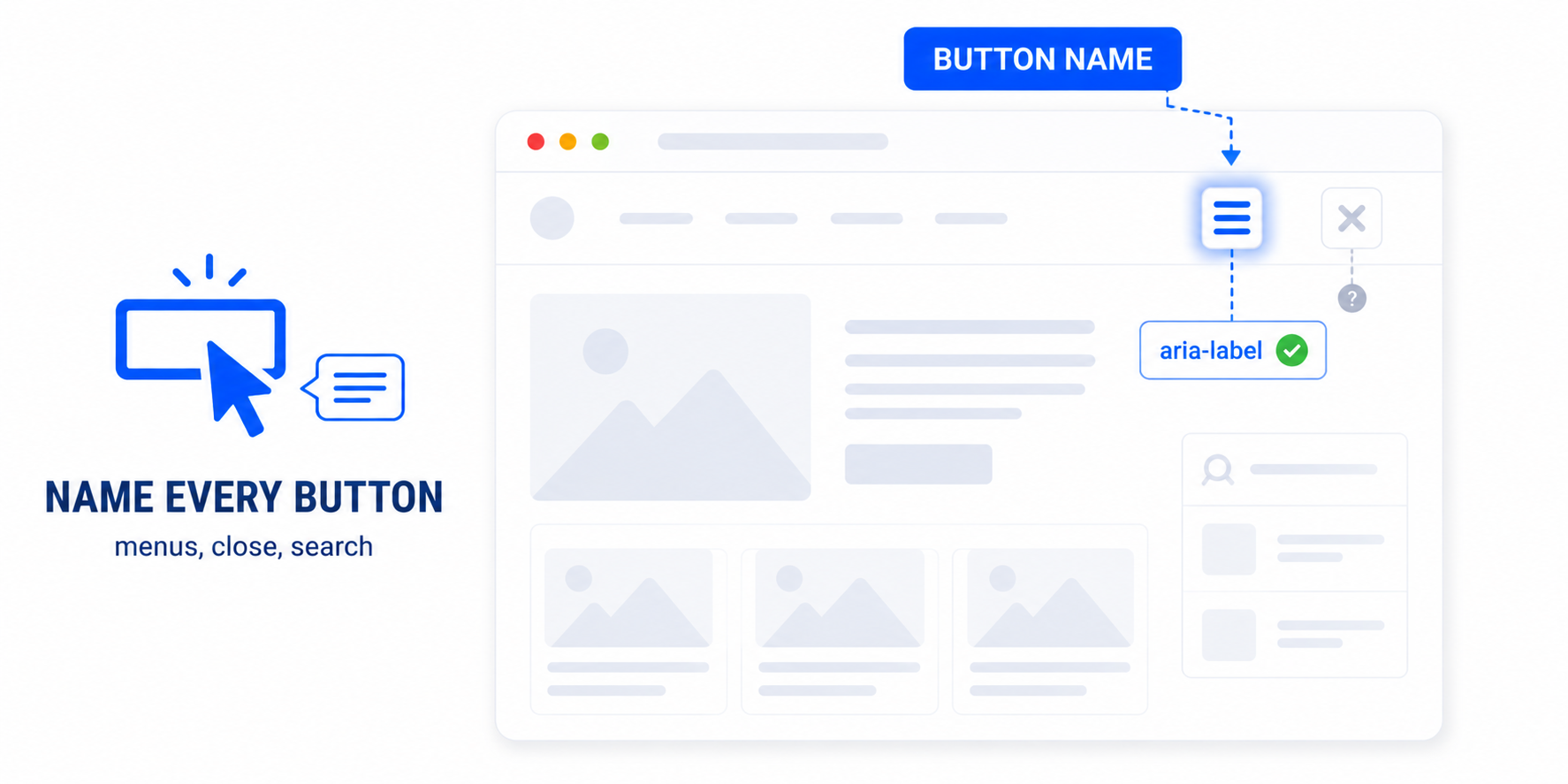
This error means a button has no text for screen readers or AI agents to announce — typically an icon-only button like a hamburger menu, search, or close. Fix it by adding an aria-label or visually hidden text describing the button's action, so its purpose is clear without relying on the icon.
The Lighthouse accessibility error “Buttons do not have an accessible name” points to a button on your page that screen readers — and AI agents — cannot describe, because it contains no readable text. It is one of the most common WordPress accessibility issues, and almost always comes from icon-only buttons. Here is how to fix every case.
What an “accessible name” is
A button’s accessible name is the label assistive technology announces so a user knows what the button does before pressing it. For a normal button the name is its text — “Submit,” “Add to cart.” The error appears when a button has no text content, only an icon. A screen reader reaches it and can say nothing more useful than “button,” leaving the user to guess. Because AI agents also read the accessibility tree to find and operate controls, an unnamed button blocks them in the same way.
What causes it in WordPress
Icon-only buttons are everywhere in modern WordPress themes and builders:
- The mobile menu toggle — the hamburger icon — is the single most common offender.
- Search toggles that open a search box.
- Close buttons (the “×”) on pop-ups, modals, and notices.
- Slider and carousel arrows for next and previous.
- Play, mute, and other media controls rendered as icons.
Each looks fine to a sighted user but is nameless in the accessibility tree.
How to fix it
Give the button a name in one of two ways:
- Add an
aria-labeldescribing the action. The cleanest fix for icon buttons:
<button aria-label="Open menu">
  <svg>...</svg>
</button>- Add visually hidden text inside the button, keeping the icon for sighted users while screen readers read the text:
<button>
  <svg aria-hidden="true">...</svg>
  <span class="screen-reader-text">Close dialog</span>
</button>
Note the aria-hidden="true" on the icon in the second example — it stops the decorative icon from being announced, so only your clear label is read. Make the name describe the action: “Open menu,” “Close dialog,” “Next slide.”
Fixing it across a WordPress site
These buttons come from your theme, your page builder, and plugins — so editing them individually means changing files you do not control, which updates will overwrite. Easy Optimizer includes accessibility fixes that automatically add accessible names to common unnamed buttons — menu toggles, close buttons, and similar controls — without touching template files. After enabling it, re-run Lighthouse to confirm the error is resolved, and test your menu toggle and any pop-up close buttons with a screen reader or by tabbing through the page.
The same fix helps SEO and AI agents
Naming your buttons is not only an accessibility win. AI agents operating your site — clicking “add to cart,” opening menus, submitting forms — rely on those names to act correctly. An unnamed button is invisible to them. Fixing it makes your site usable by screen-reader users and agents at once. While you are in the accessibility tree, fix the closely related links without a discernible name and the viewport zoom warning to clear the most common Lighthouse accessibility failures together.
What does “buttons do not have an accessible name” mean?
It means a button has no text a screen reader can announce, so users can’t tell what it does. It’s almost always an icon-only button like a menu, search, or close button. The fix is to add a label describing the button’s action.
How do I add an accessible name to an icon button?
Add an aria-label describing the action, such as aria-label=”Open menu” on a hamburger button, or include visually hidden text inside the button. Either gives it a name without changing its appearance.
Why does my hamburger menu cause this error?
The mobile menu toggle is usually just an icon with no text, so it has no accessible name. Add aria-label=”Open menu” (or “Toggle navigation”) to the button, and it will announce correctly to screen readers and agents.
Should I hide the icon from screen readers?
If you add a text label, yes — put aria-hidden=”true” on the decorative icon so it isn’t announced alongside your label. That way the screen reader reads only your clear action name, not the icon’s markup.
Can a plugin fix unnamed buttons automatically?
Yes. Easy Optimizer’s accessibility fixes add accessible names to common unnamed buttons like menu toggles and close buttons without editing theme files. Re-run Lighthouse and test your menu and pop-up controls to confirm.
Do AI agents need button names?
Yes. Agents read button names from the accessibility tree to operate your site — adding to cart, opening menus, closing dialogs. An unnamed button is invisible to them, so naming it improves both accessibility and agent-readiness.
![[user-scalable=no] maximum-scale Viewport](https://cdn.fluxpress.io/fp5nquhs1rvv02/ehhpvLDu/rs:fit:2560:0/plain/https://fluxpress.io/wp-content/uploads/2026/06/user-scalableno-maximum-scale-Viewport.png)