 Uzair
Uzair 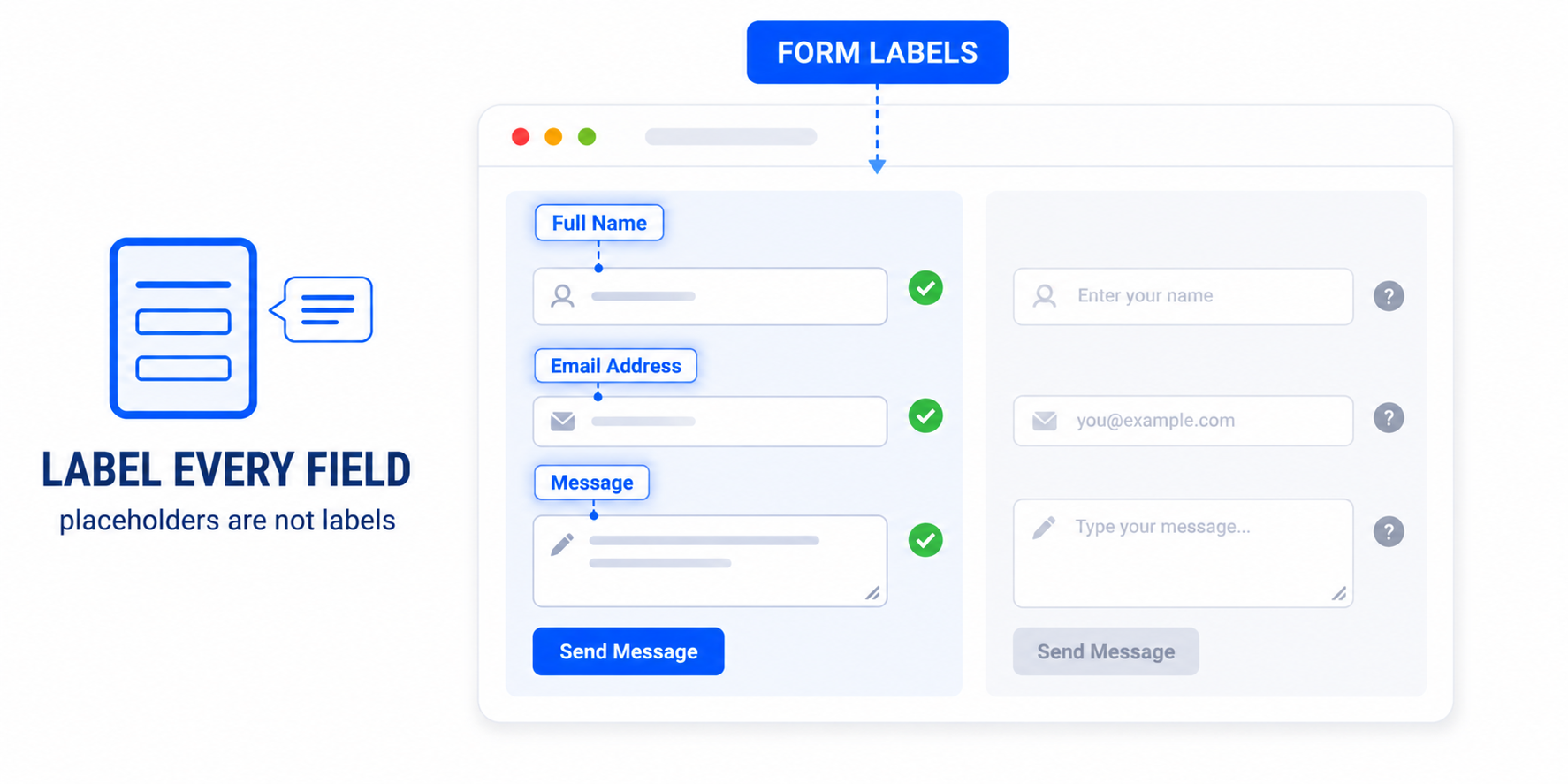
This error means a form field has no label that screen readers or AI agents can read, so users don't know what to enter. Fix it by giving every input a proper label — a visible tied to the field, or an aria-label. A placeholder alone does not count as a label.
The Lighthouse accessibility error “Form elements do not have associated labels” points to input fields on your page — search boxes, contact fields, newsletter sign-ups — that have no label assistive technology can read. It is one of the most damaging accessibility issues, because a form is useless if a visitor cannot tell what each field is for. This guide explains what an associated label is and how to fix every case in WordPress.
What an “associated label” means
Every form field — text inputs, checkboxes, dropdowns, text areas — needs a programmatic label that names its purpose. A sighted user infers the purpose from the surrounding design, but a screen-reader user hears only what the field exposes. With no label, the screen reader announces something like “edit text, blank,” leaving the user guessing whether to type a name, an email, or a search term. The label must be associated with the field in code, not just placed near it visually.
This matters for AI agents too. An agent filling in a form reads the accessibility tree to decide what goes in each field. An unlabelled input gives it nothing to match against — so unlabelled forms are a direct blocker to agent interactions, not just a human accessibility issue.
Why a placeholder is not a label
The single most common cause of this error is relying on placeholder text — the grey hint inside a field — instead of a real label. Placeholders fail as labels for three reasons: they disappear as soon as the user starts typing, they are not reliably announced by all screen readers, and their low contrast is hard to read. A field with only a placeholder is, to assistive technology, effectively unlabelled. Lighthouse flags it accordingly.
Where the error comes from in WordPress
Unlabelled fields appear in more places than you would expect:
- Search forms in themes, where the search box is a bare input with only placeholder text.
- Comment forms that have been customised and lost their labels.
- Contact and newsletter forms from plugins or page builders that use placeholders by default.
- WooCommerce and checkout fields in some custom templates.
How to fix it
Give every field an associated name in one of these ways:
- Use a visible
<label>tied to the field by matching the label’sforattribute to the input’sid. This is the best option — it helps everyone, not only screen-reader users. - Add an
aria-labelto the input when a visible label is not desired (common for a search field): a short, descriptive name that screen readers announce. - Keep the placeholder as a hint, not the label. You can use both — a real label for the name and a placeholder for an example — but never the placeholder alone.
Whichever you use, make the name clear: “Search,” “Email address,” “Your message.”
Fixing it across a WordPress site
Because these fields come from themes, plugins and builders, editing each form means changing files you do not own — and updates undo the change. Easy Optimizer includes accessibility fixes that automatically add accessible labels to form fields that lack them — search boxes, common form inputs and more — without touching template files. After enabling it, re-run Lighthouse to confirm the error is gone, and tab through your main forms or test them with a screen reader to check each field announces a sensible name.
The same fix helps everyone — and every agent
Labelled forms are easier for sighted users, essential for screen-reader users, clearer for search engines, and usable by the AI agents that increasingly fill in forms on a visitor’s behalf. It is one of the highest-value accessibility fixes you can make. Pair it with fixing images without alt attributes and buttons without an accessible name to clear the most common Lighthouse accessibility failures in one pass.
What does “form elements do not have associated labels” mean?
It means a form field has no label that assistive technology can read, so users can’t tell what to enter. Each input needs a label tied to it in code — a visible label or an aria-label — so its purpose is announced clearly.
Why isn’t a placeholder a valid label?
Placeholders disappear when the user types, aren’t reliably announced by screen readers, and have low contrast. A field with only a placeholder is effectively unlabelled. Use a real label and keep the placeholder as an optional hint.
How do I label a search field without showing a visible label?
Add an aria-label to the input, such as aria-label=”Search”. This gives screen readers a name to announce without displaying a visible label, which is the common pattern for search boxes.
What’s the best way to associate a label with a field?
Use a visible <label> whose for attribute matches the input’s id. This links them in code and benefits everyone, not just screen-reader users. An aria-label is a good alternative when a visible label isn’t wanted.
Can a plugin fix unlabelled forms automatically?
Yes. Easy Optimizer’s accessibility fixes add accessible labels to form fields that lack them without editing theme files. Re-run Lighthouse afterward and tab through your forms to confirm each field announces a sensible name.
Do AI agents need form labels?
Yes — critically. Agents read the accessibility tree to decide what to type in each field. An unlabelled input gives them nothing to match, so labelling forms is essential for agents to complete tasks, not just for human accessibility.
![[user-scalable=no] maximum-scale Viewport](https://cdn.fluxpress.io/fp5nquhs1rvv02/ehhpvLDu/rs:fit:2560:0/plain/https://fluxpress.io/wp-content/uploads/2026/06/user-scalableno-maximum-scale-Viewport.png)