 Uzair
Uzair 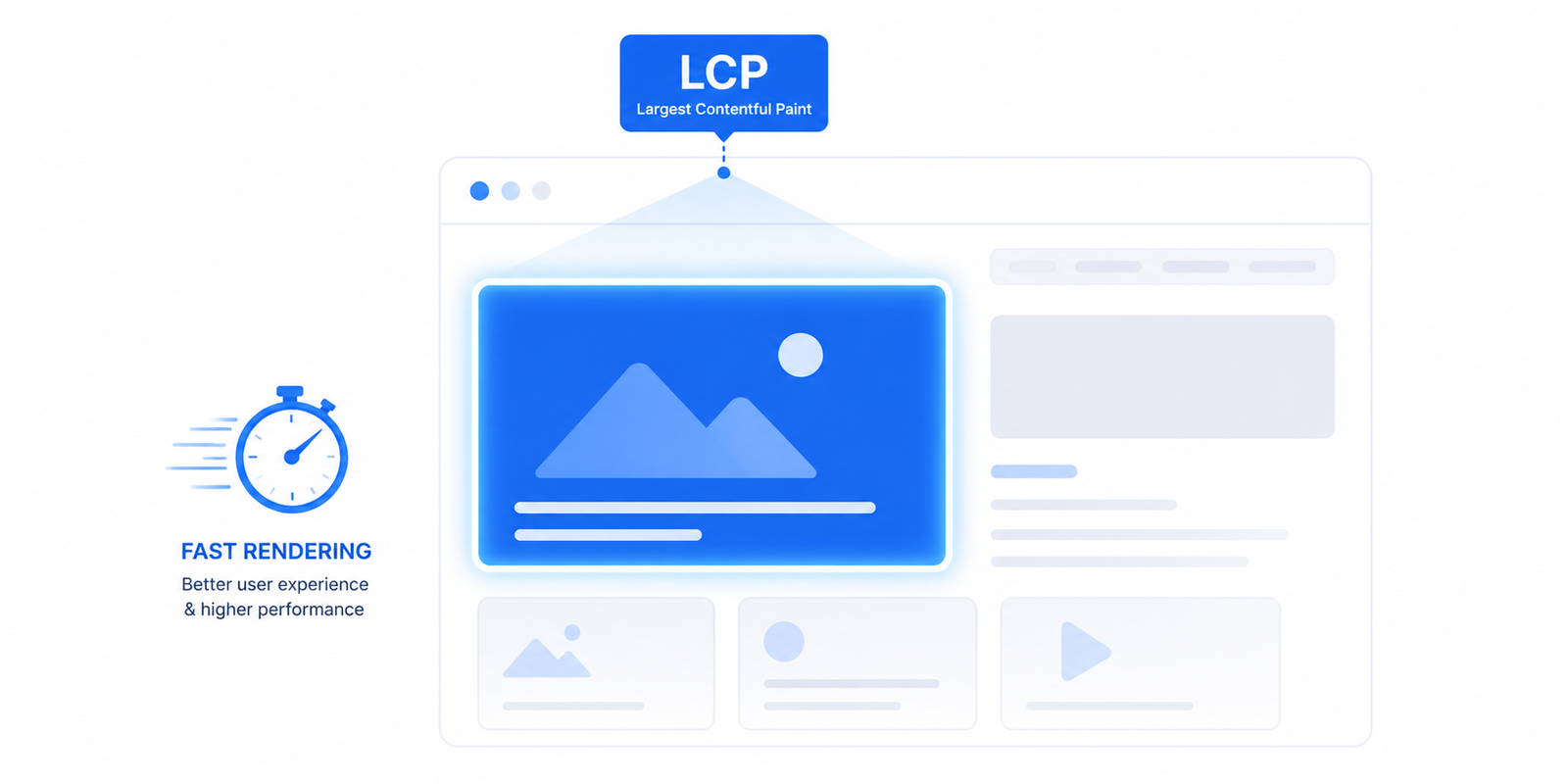
LCP breakdown splits Largest Contentful Paint into four phases — time to first byte, load delay, load time, and render delay. "LCP request discovery" means the browser found your LCP image too late. Fix both by preloading the LCP image with high fetch priority, never lazy-loading it, serving modern formats, and lowering server response time. Easy Optimizer auto-preloads the LCP image and caches pages to cut TTFB — free.
If your WordPress site fails Core Web Vitals, Largest Contentful Paint (LCP) is usually the culprit. And in 2026, Google’s PageSpeed Insights has gotten a lot smarter about why — it now breaks LCP down into four distinct phases and explicitly audits something called “LCP request discovery.”
This guide explains both, and shows you exactly how to fix them on WordPress.
What Is LCP?
Largest Contentful Paint measures how long it takes for the largest visible element on your page — usually your hero image, headline, or featured banner — to render in the viewport.
Google’s targets:
- Good: LCP under 2.5 seconds
- Needs improvement: 2.5–4.0 seconds
- Poor: over 4.0 seconds
A poor LCP doesn’t just hurt your PageSpeed score. It directly impacts SEO, conversion rates, and bounce rates. Studies consistently show every additional second of LCP costs you 7–12% of conversions.
The LCP Breakdown — 4 Phases
The big shift in modern PageSpeed Insights is that LCP isn’t reported as a single number anymore. It’s broken into four phases. Each tells you where the time is going:
1. Time to First Byte (TTFB)
The time from the user’s request to the first byte of HTML arriving from your server. This is your server response time.
- Healthy: under 600ms
- Bad: over 1,000ms
If TTFB is your biggest LCP phase, the problem is server-side — slow hosting, no page cache, heavy database queries, bloated themes calling 200+ DB queries per page.
2. Resource Load Delay
The time between TTFB ending and the browser actually starting to download your LCP element (typically the hero image).
This is where LCP Request Discovery lives — see the next section.
3. Resource Load Duration
The time it takes to actually download the LCP element. If it’s an image, this is governed by file size, image format, and CDN performance.
4. Element Render Delay
The time between the LCP resource finishing downloading and the browser rendering it. Long render delays usually mean render-blocking CSS or JavaScript is still pending.
When PageSpeed shows you these four numbers, the largest one tells you where to focus. There’s no point optimizing your image if 80% of your LCP is TTFB.
What Is LCP Request Discovery?
This is the audit that confuses everyone. Here’s what it actually means:
The browser builds a “preload scanner” that looks ahead in the HTML to find resources it should start downloading early. LCP Request Discovery checks whether your LCP element is discoverable by this scanner.
Three common failures:
- The LCP image is loaded by JavaScript (e.g., a slider, a lazy-loader, or a React component). The scanner can’t see it in HTML, so the download starts late.
- The LCP image has
loading="lazy". By default, native lazy-loading delays the download until the browser confirms the image is in the viewport — adding hundreds of milliseconds. - No
fetchpriority="high"hint. The browser treats your hero image like any other image, downloading it after CSS, fonts, and JavaScript.
How to Fix LCP Request Discovery in WordPress
Step 1: Identify your LCP element
Open Chrome DevTools → Performance tab → record a page load. Look for “Largest Contentful Paint” in the timeline. The element it points to is your LCP target. Usually it’s the hero image, sometimes a large headline.
Step 2: Remove loading="lazy" from the LCP image
WordPress 5.5+ adds loading="lazy" to every image automatically — including your hero. That’s the biggest LCP killer most sites have.
You need to disable lazy-loading specifically for images above the fold. In functions.php:
add_filter( 'wp_lazy_loading_enabled', function( $enabled, $tag, $context ) {
    if ( 'the_content' === $context && is_singular() ) {
        // Skip lazy-loading for the first image in post content
        static $first_image = false;
        if ( ! $first_image && 'img' === $tag ) {
            $first_image = true;
            return false;
        }
    }
    return $enabled;
}, 10, 3 );
For featured images and hero blocks, you’ll typically need theme-specific code. Easy Optimizer has a “Disable lazy-load for above-the-fold” feature that handles this automatically by detecting the LCP candidate.
Step 3: Add fetchpriority="high" to your LCP image
This tells the browser to download this image first, before lower-priority resources:
<img src="hero.webp" fetchpriority="high" alt="..." />
WordPress 6.3+ does this automatically for the first content image. For featured images, hero blocks, or anything custom, you may need to add it manually or via a plugin.
Step 4: Preload the LCP image
For mission-critical LCP elements, add an explicit preload hint in <head>:
<link rel="preload" as="image" href="https://yoursite.com/hero.webp" fetchpriority="high">
Easy Optimizer’s “Preload critical images” lets you add these by URL pattern without editing your theme.
How to Fix Each LCP Phase
Reducing TTFB
This is hosting-driven. Cheap shared hosting (Bluehost, Hostgator, GoDaddy basic) will rarely deliver TTFB under 800ms regardless of optimization. If your TTFB is consistently bad:
- Move to faster hosting: Cloudways, Kinsta, RunCloud, or properly tuned VPS
- Enable a page cache (LiteSpeed Cache, WP Rocket, W3 Total Cache)
- Use Cloudflare or another CDN with HTML caching
- Audit your database — slow queries, transient bloat, autoload bloat are the usual suspects
- Reduce active plugins. Each plugin = additional PHP execution
Reducing Resource Load Delay
This is the LCP Request Discovery problem. Fixes covered above.
Reducing Resource Load Duration
This is image optimization:
- Format: Use WebP (universal support) or AVIF (better compression, slightly less support)
- Compression: Aim for 70–85% quality for hero images
- Dimensions: Don’t serve a 4000×3000 image into a 1200px container
- CDN: Push images through Cloudflare, BunnyCDN, or KeyCDN
A typical WordPress hero image I see is 800 KB JPEG. The same image as 75-quality WebP is usually 80–120 KB. That’s a 5–7× speedup.
Easy Optimizer lazy-loads other images while preserving above-the-fold quality. For format conversion, pair it with a dedicated plugin like ShortPixel or use Cloudflare Polish.
Reducing Element Render Delay
This is the render-blocking problem. CSS and JavaScript still parsing means even a downloaded image can’t render.
- Defer non-critical JavaScript
- Delay third-party scripts until user interaction
- Remove unused CSS (Easy Optimizer’s Unused CSS feature)
- Self-host fonts to eliminate external connections
I covered all of this in detail in How to Fix Render-Blocking Requests on WordPress.
A Real-World Example
I recently audited a WooCommerce site with a 4.8s LCP. The breakdown:
- TTFB: 380ms (good)
- Resource Load Delay: 2,100ms (catastrophic)
- Resource Load Duration: 1,800ms (bad)
- Element Render Delay: 520ms (acceptable)
The Resource Load Delay was the smoking gun. The hero image was loaded by a slider plugin that initialized via JavaScript — the preload scanner couldn’t find it.
Fix: replaced the JS slider with a static first slide using a regular <img> tag, added fetchpriority="high", removed loading="lazy", and converted the image to WebP. New LCP: 1.6 seconds.
That’s the kind of impact LCP Request Discovery has when you fix it.
Quick Checklist
- Identify your LCP element using DevTools
- Remove
loading="lazy"from the LCP image - Add
fetchpriority="high"to the LCP image - Preload the LCP image if it’s a custom hero or background
- Convert hero images to WebP and compress to ~80 KB
- Confirm TTFB is under 600ms (else fix hosting/caching)
- Defer non-critical JS and remove unused CSS to fix render delay
Wrapping Up
LCP is the most important Core Web Vitals metric, and the new PageSpeed breakdown finally tells you exactly where to focus. Most WordPress sites can fix LCP in a single afternoon with the right approach.
Easy Optimizer handles the LCP-friendly defaults — disabling lazy-load for above-the-fold images, deferring JavaScript, removing unused CSS, preloading critical resources — without you needing to edit theme files.
If your LCP issues are deeper (slow hosting, heavy theme, complex page builder), our WordPress Speed Optimization service handles end-to-end Core Web Vitals work with a money-back guarantee.
![Image Elements Do Not Have [alt] Attributes](https://free-cdn.fluxpress.io/fp7jy12o083ekn/mHynEZiC/rs:fit:2560:0/plain/https://fluxpress.io/wp-content/uploads/2026/06/Image-Elements-Do-Not-Have-alt-Attributes.png)