 Uzair
Uzair 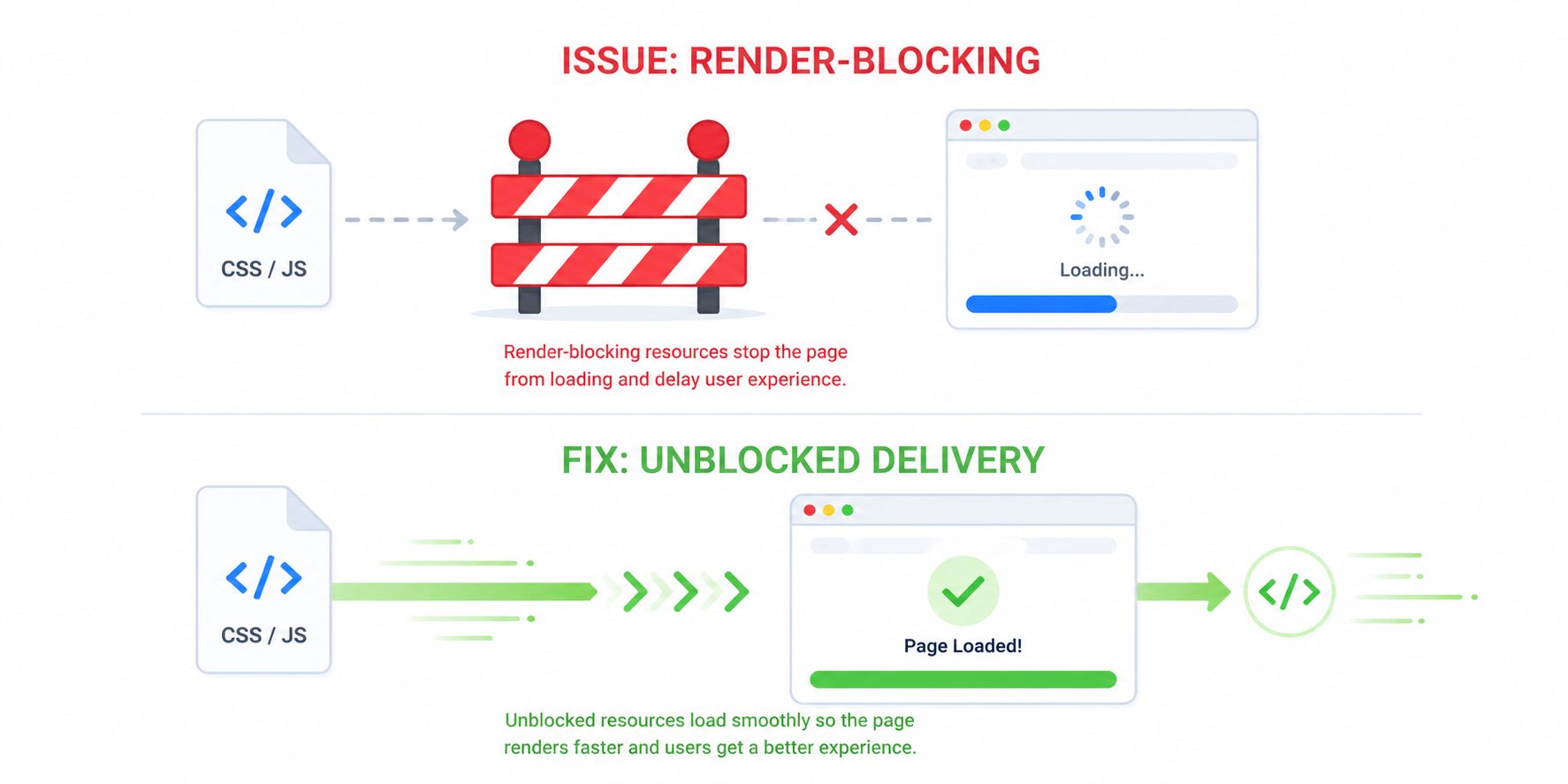
If you’ve run your WordPress site through PageSpeed Insights, there’s a good chance you’ve seen this red warning: “Eliminate render-blocking resources.” It’s one of the most common performance issues in WordPress — and one of the most damaging to your LCP score. In this guide, I’ll walk you through exactly what render-blocking requests are, how […]
If you’ve run your WordPress site through PageSpeed Insights, there’s a good chance you’ve seen this red warning: “Eliminate render-blocking resources.” It’s one of the most common performance issues in WordPress — and one of the most damaging to your LCP score.
In this guide, I’ll walk you through exactly what render-blocking requests are, how to identify them on your WordPress site, and the practical fixes that actually move the needle. No fluff, no theory — just the techniques I’ve used to fix this issue on hundreds of real client sites.
What Are Render-Blocking Requests?
When a browser loads your page, it parses the HTML top to bottom. The moment it hits a CSS file in <head> or a synchronous <script> tag, it has to stop, download that file, parse it, and execute it before continuing. While that’s happening, the user sees a blank screen.
That pause is render-blocking. The longer it lasts, the worse your First Contentful Paint (FCP) and Largest Contentful Paint (LCP) scores get.
Two types of files are typically render-blocking on WordPress:
- CSS stylesheets loaded in
<head>(almost all of them by default) - JavaScript files loaded synchronously in
<head>or before content renders
WordPress, by default, loads a lot of these — your theme’s main stylesheet, every plugin’s CSS, jQuery, third-party scripts, page builder bundles. On a typical WooCommerce site I audit, I see 15–25 render-blocking requests on the homepage alone.
How to Identify Render-Blocking Requests
Run your URL through PageSpeed Insights. Under the Diagnostics section, expand “Eliminate render-blocking resources.” You’ll get a table listing every offending file with the time it’s adding to your page load.
For deeper analysis, use Chrome DevTools:
- Open DevTools → Network tab
- Reload the page with cache disabled
- Look at the waterfall — anything loading in the first 1–2 seconds with high priority before your hero image is likely render-blocking
Now let’s fix them.
Fix 1: Defer Non-Critical JavaScript
The single highest-impact change you can make is deferring JavaScript that doesn’t need to run before the page renders.
What “defer” means
Adding defer to a <script> tag tells the browser: download this in the background, but don’t run it until the HTML is fully parsed. The script no longer blocks rendering.
How to defer scripts in WordPress
If you’re comfortable with code, add this to your child theme’s functions.php:
add_filter( 'script_loader_tag', function( $tag, $handle ) {
    // List of script handles to defer
    $defer_handles = [ 'jquery', 'wp-embed', 'contact-form-7' ];

    if ( in_array( $handle, $defer_handles, true ) ) {
        return str_replace( ' src', ' defer src', $tag );
    }
    return $tag;
}, 10, 2 );
Warning: never blindly defer jquery if your theme depends on it for above-the-fold rendering. Test thoroughly.
The plugin route
If you’d rather not touch code, Easy Optimizer has a one-click “Defer JavaScript” toggle that handles this safely with smart exclusions for problem scripts. It’s free on WordPress.org.
Fix 2: Delay JavaScript Until User Interaction
Some scripts don’t need to load at all until the user interacts with the page — chat widgets, analytics, marketing pixels, video embeds, social sharing scripts.
Delaying them means they don’t run until the user scrolls, clicks, or moves the mouse. Your initial PageSpeed score skyrockets and the user experience is unchanged.
Common scripts to delay on WordPress:
- Google Analytics / GTM
- Facebook Pixel
- Hotjar / Clarity
- Tawk / Intercom / Crisp chat widgets
- YouTube/Vimeo embeds
Easy Optimizer’s “Delay JavaScript” feature lets you target scripts by URL keyword and offload them until interaction. This alone often cuts 1–2 seconds off LCP on content-heavy sites.
Fix 3: Eliminate Render-Blocking CSS
CSS is trickier than JavaScript because, by default, all CSS blocks rendering. The browser refuses to render anything until it has the complete styling rules — otherwise you’d get an unstyled flash (FOUC).
There are three legitimate strategies:
a) Remove unused CSS
Most WordPress sites load 200–500 KB of CSS where only 10–20% is actually used on any given page. Your contact page is loading WooCommerce styles. Your blog posts are loading checkout CSS. It adds up.
Easy Optimizer’s Unused CSS feature scans each page, identifies the rules actually being used, and serves only those — either inline (fastest) or as a generated stylesheet. The unused leftovers can be:
- Async-loaded (loaded but non-blocking)
- Delayed (loaded after user interaction)
- Removed entirely (most aggressive)
This is the same approach Perfmatters uses, and on a typical site it cuts CSS by 60–90%.
b) Combine and minify CSS
Smaller, fewer CSS files = faster downloads. Most caching plugins (WP Rocket, LiteSpeed Cache, W3 Total Cache) do this automatically. If you don’t have one, Easy Optimizer handles minification natively.
c) Inline critical CSS
This is the advanced move: extract the CSS needed for above-the-fold content, inline it in <head>, and load the rest asynchronously. It’s powerful but tricky to maintain — every theme tweak can break the critical CSS.
For most WordPress sites, removing unused CSS delivers 80% of the benefit with 20% of the maintenance cost.
Fix 4: Self-Host Google Fonts
If you’re loading fonts from fonts.googleapis.com, every font request is a render-blocking external connection — DNS lookup, TLS handshake, then the actual download.
Self-hosting fonts eliminates that entire chain. You can do it manually, or use EasyFonts which auto-detects Google Fonts on your site and self-hosts them with one click. Bonus: GDPR-compliant.
Fix 5: Audit and Reduce Plugin CSS/JS
Every plugin that enqueues CSS or JS on your front end adds to the render-blocking pile. Audit your active plugins:
- Open your homepage in DevTools → Network tab
- Sort by “Type → stylesheet” or “Type → script”
- Identify which plugin is loading what
I commonly find plugins loading their assets sitewide when they’re only needed on one page. Contact Form 7 loads on every page even if the form is only on /contact/. Same with WooCommerce styles outside the shop.
A plugin like Asset CleanUp or Perfmatters lets you disable specific assets per URL. Easy Optimizer covers the most common WordPress asset-loading sins out of the box.
Common Mistakes That Make Things Worse
After auditing 2,000+ WordPress sites, here are the mistakes I see most often:
- Deferring jQuery without testing. Many themes break if jQuery is deferred. Always check the front-end after enabling.
- Removing too much CSS. Aggressive unused-CSS removal can break dynamic UI (tabs, accordions, sliders). Always whitelist your dynamic class names.
- Inlining critical CSS once and forgetting it. Critical CSS needs to be regenerated whenever you change your theme or layout.
- Combining files when using HTTP/2. On modern HTTP/2 hosting, combining files can actually be slower than serving them separately. Test before assuming.
- Optimizing the wrong page. PageSpeed scores can vary wildly between page types. Always test your homepage, a blog post, and a critical conversion page.
Quick Checklist
Before wrapping up, run through this:
- Defer non-critical JavaScript
- Delay third-party scripts (analytics, chat, pixels) until interaction
- Remove unused CSS (page-level, not site-level)
- Self-host Google Fonts
- Audit plugin assets and disable on pages where they’re not needed
- Minify and combine remaining CSS/JS
- Re-test in PageSpeed Insights after each change
Wrapping Up
Render-blocking requests are the lowest-hanging fruit for WordPress speed optimization. Deferring JavaScript, delaying third-party scripts, and removing unused CSS will, on most sites, take your PageSpeed score from the 40s into the 90s.
If you’d rather not configure each setting manually, Easy Optimizer is a free WordPress plugin that handles all of the above — defer, delay, unused CSS removal, font hosting — with sensible defaults. No ads, no upsells, no bloat.
And if you’d rather have someone do it for you, that’s exactly what our WordPress Speed Optimization service is for.